How to Merge PDFs Without Uploading Them
Combine PDF files on a Mac, iPhone, Windows PC or in your browser without sending them to anyone's server. Built-in ways, page order, file size and pitfalls.
Computing··8 min read
You can merge PDFs without handing them to a website. On a Mac, select the files in Finder, Control-click and choose Quick Actions > Create PDF. On an iPhone, open one PDF in the Preview app and insert the others. On Windows, Android or a Chromebook, use a browser tool that does the work on your own device, like our Merge PDF page.
The order matters, a few things don't survive the trip, and the merged file won't be much smaller than the pieces. Here's each method, then what we found when we merged a real stack of documents.
On a Mac: Finder or Preview
Macs have two built-in ways, both in Apple's own guides.
Finder, for whole files. Select the PDFs in a Finder window or on the desktop, Control-click, and choose Quick Actions > Create PDF. Apple notes that the files go into the PDF in the order you selected them, so click them in the order you want. The new file is named after the first one.
Preview, for picking pages. Open the PDFs in Preview and choose View > Thumbnails in each. Then drag thumbnails from one document's sidebar into another's, anywhere in the list, and drag them again to reorder. Command-click to grab pages that aren't next to each other. To add a whole PDF, drag its icon from Finder into the sidebar.
One catch with Preview: it saves changes automatically. Apple suggests choosing File > Duplicate on each PDF first if you want to keep the originals untouched.
On an iPhone: the Preview app
iPhones running iOS 26 or later have a Preview app that edits PDF pages. Open the first PDF, tap the page count to show the thumbnails, then touch and hold a thumbnail and tap Insert from File to add another PDF or an image. Touch and hold a thumbnail and drag it to move a page. The same menu deletes and rotates pages.
Preview is built into the phone, so no website is involved. On an older iPhone, the browser method below works in Safari too.
On Windows: no built-in merge
Windows doesn't have a merge feature. Its PDF reader is Microsoft Edge, which can highlight, annotate, translate and save PDFs, but Microsoft's own feature list for it doesn't include combining files. Microsoft Print to PDF can't do it either: it turns one print job into one new PDF, so it never sees two files at once.
We couldn't find a built-in merge on Android phones or Chromebooks either. On all three, a browser tool that runs locally is the easy route.
In your browser: our Merge PDF tool
Our Merge PDF page does the whole job inside the browser tab. The PDF library loads into your browser and works in a background thread on your device. Your files are never sent to a server, which also means it keeps working offline once the page has loaded.
- Drop the PDFs on the page, or tap Open files. JPG, PNG and WebP images are welcome too; each becomes a page.
- Put the files in order with the arrows in the file list, or drag single pages around the grid. Tap pages to select them, then move or remove them together.
- Tap Merge and download one PDF.
We tried it with a realistic stack: a 6-page tenancy agreement, a 2-page scanned bank statement and a 1-page payslip, added in that order. The payslip had to go last, so one tap of its down arrow fixed that.
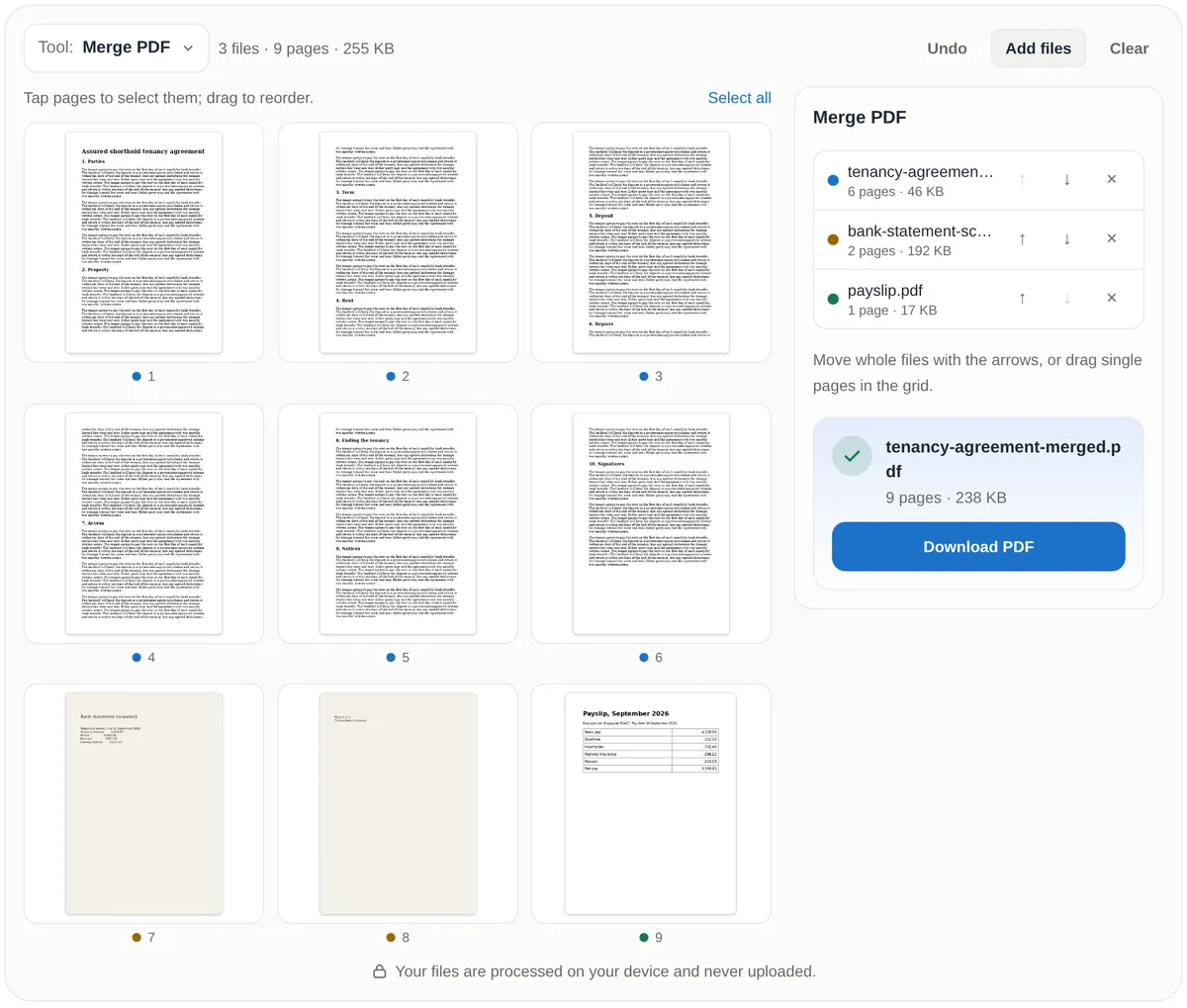
There's no page or file-count limit and no sign-up. The real limit is your device's memory: the page warns you when the files add up to more than it thinks your device can handle comfortably, at most 400 MB.
If you only want some pages of a long file, add it anyway and remove the pages you don't need before merging. Or use Extract pages first and merge the result.
Why not just upload them?
Plenty of free merge sites work by uploading your files, merging them on a server and sending the result back. The site may well delete them afterwards. But the PDFs people merge are often the ones they least want copied: signed contracts, payslips, bank statements, medical letters, ID scans for a rental or visa application.
Once a file is on someone else's server, you're relying on things you can't check: how long they keep it, who on their side can open it, what ends up in logs and backups, and whether they get breached. Merging doesn't need a server at all. Your phone or laptop can do it in a second.
You don't have to take a site's word for it, either. Our post on editing photos without uploading them shows how to watch your browser's network panel and see for yourself that nothing leaves.
What a merge keeps, and what it drops
Merging copies pages. Anything that belongs to the whole file rather than to a page gets left behind.
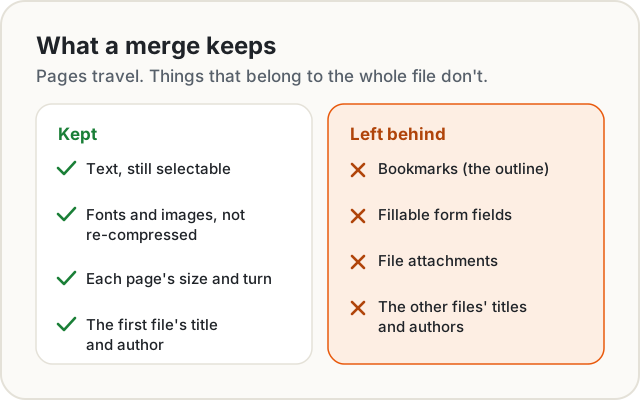
We checked our merged file with a PDF inspector. The text was still selectable, the scanned pages kept exactly the same JPEG images byte for byte, and the payslip stayed US Letter while the other pages stayed A4. The title came from the first file. The tenancy agreement's 11 bookmarks were gone.
Mistakes and tips
Checking the order after merging, not before. Scroll the thumbnails once before you merge. A cover letter on page 9 is easy to miss when you send in a hurry. In Finder, remember that the click order is the page order.
Expecting mixed page sizes to match. A4 and US Letter pages stay as they are, so a merged file can have pages of slightly different shapes. That's normal, and viewers show each page at its own size. If you print, choose your printer's fit-to-page option so nothing gets clipped.
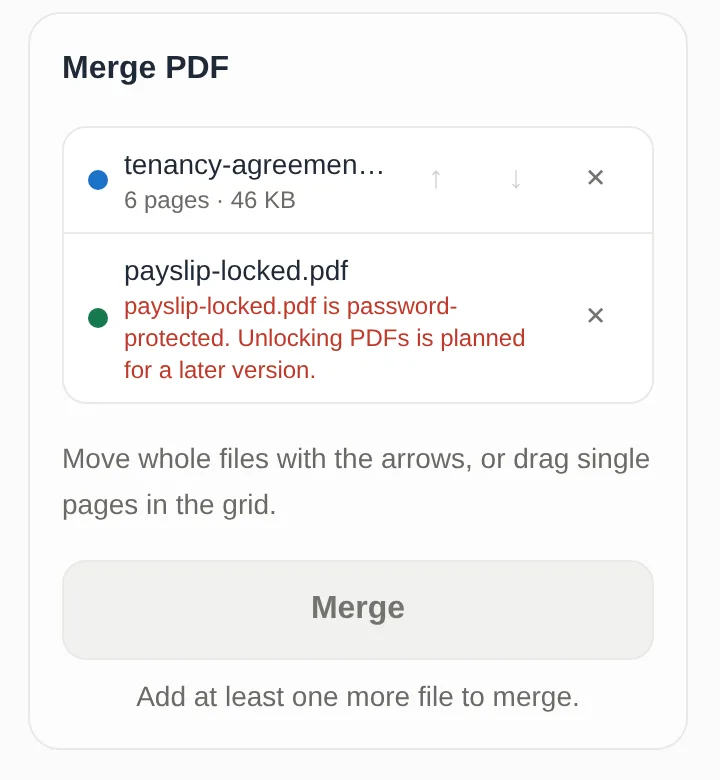
Merging a password-protected PDF. A PDF that needs a password to open can't be read until it's unlocked. Our tool tells you which file is locked instead of making a broken copy, and the merge waits until you remove it or add another file. Open it with its password in your usual viewer and save an unlocked copy first, if it's yours to unlock.
Losing bookmarks and form fields. Bookmarks and fillable fields belong to the whole document, so they don't come along. Fill in forms (and flatten them, if you want the answers fixed) before merging. If a long report's bookmarks matter, merge it in a desktop PDF editor that rebuilds the outline.
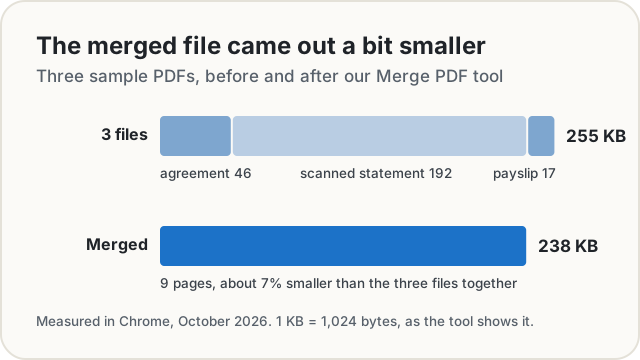
Expecting a smaller file. Merging isn't compression. Our three files came to 255 KB together and the merged file to 238 KB, about 7% smaller, because the tool packs the PDF's internal structure more tightly. The pages themselves weren't touched. The two scanned pages were three quarters of the size before and after.
If an upload form has a size limit, shrink the scans before they go into the PDF. Photograph or scan the pages, run the images through our Image Compressor, then drop the smaller images into the merge.
The short version
- Mac: select the files in Finder in the order you want, Control-click, Quick Actions > Create PDF. Or drag thumbnails in Preview.
- iPhone (iOS 26 and later): Preview, touch and hold a thumbnail, Insert from File.
- Windows, Android, Chromebook: a browser tool that runs on your device, like our Merge PDF.
- Check the order before you merge, unlock and fill forms first, and expect bookmarks to go.
Sources
- Apple. Combine files into a PDF on Mac. Mac User Guide.
- Apple. Combine PDFs in Preview on Mac. Preview User Guide.
- Apple. Add, delete, rotate, move or crop PDF pages in Preview on iPhone. iPhone User Guide.
- Microsoft. PDF reader in Microsoft Edge: the features Edge offers for PDFs.
- pdf-lib, the open-source library our tool uses to copy pages, and Mozilla's pdf.js for the thumbnails.
- Test files: a tenancy agreement and a payslip we generated as PDFs, and a two-page scan we made as JPEG images. Merged with our Merge PDF tool in Chrome, October 2026, and checked with qpdf and Poppler's pdfinfo and pdfimages. Sizes as the tool shows them, with 1 KB = 1,024 bytes.
Share this post
Keep reading
Computing· Oct 14, 2026· 11 min
How to Sign a PDF Without Uploading It
Sign a PDF in your browser with nothing uploaded: is an e-signature legal, how it differs from a digital signature, and when to use an e-sign service instead.Computing· Oct 11, 2026· 9 min
How to Compare Two Documents and See Every Change
Compare two versions of a contract, essay or code and see every change by line, word or letter, side by side or as track changes, without uploading anything.Computing· Oct 14, 2026· 10 min
Does Your Photo Show Where You Live? Check and Remove It
Phone photos can carry GPS coordinates accurate to a few metres. See what yours give away, which apps strip it, and how to remove it before you share.