How to Compare Two Documents and See Every Change
Compare two versions of a contract, essay or code and see every change by line, word or letter, side by side or as track changes, without uploading anything.
Computing··9 min read
Put the old version on the left and the new one on the right in a diff tool, and it will mark every line, word or letter that changed. If both files are Word documents, Word can do it itself: on the Review tab, choose Compare > Compare Documents (Microsoft). For anything else (a PDF, an email, a pasted clause, a config file), paste both texts into a diff checker that runs in your browser, like our Text Compare, so the words never leave your device.
That last part matters more than it sounds. The documents people most want to compare, contracts, offer letters, résumés, are the ones they'd least want stored on a stranger's server. Below: what a diff actually is, the three ways to read one, the options that cut out noise, how to handle Word and PDF files, how to read a .patch, and a short look at the clever algorithm underneath.
What a diff is
A diff is the shortest list of edits that turns one text into another. Most tools work in two passes. First they match up lines, so they can say "line 4 changed, line 6 was removed, a line was added at the end". Then, inside each changed line, they compare words or letters so you can see that "14 March" became "21 March" without rereading the whole sentence.
Which level you want depends on the text:
| Compare by | Good for | Example |
|---|---|---|
| Lines | Code, lists, CSV, config files | A setting changed from true to false |
| Words | Prose: contracts, essays, letters | "within 30 days" became "within 14 days" |
| Letters | Typos, IDs, numbers, part codes | INV-20481 became INV-20418 |
Word-level is the right default for documents. Letter-level is noisy on prose, because a reworded phrase lights up a scatter of single letters, but it's the only way to spot a transposed digit in an invoice number.
Three ways to read the result
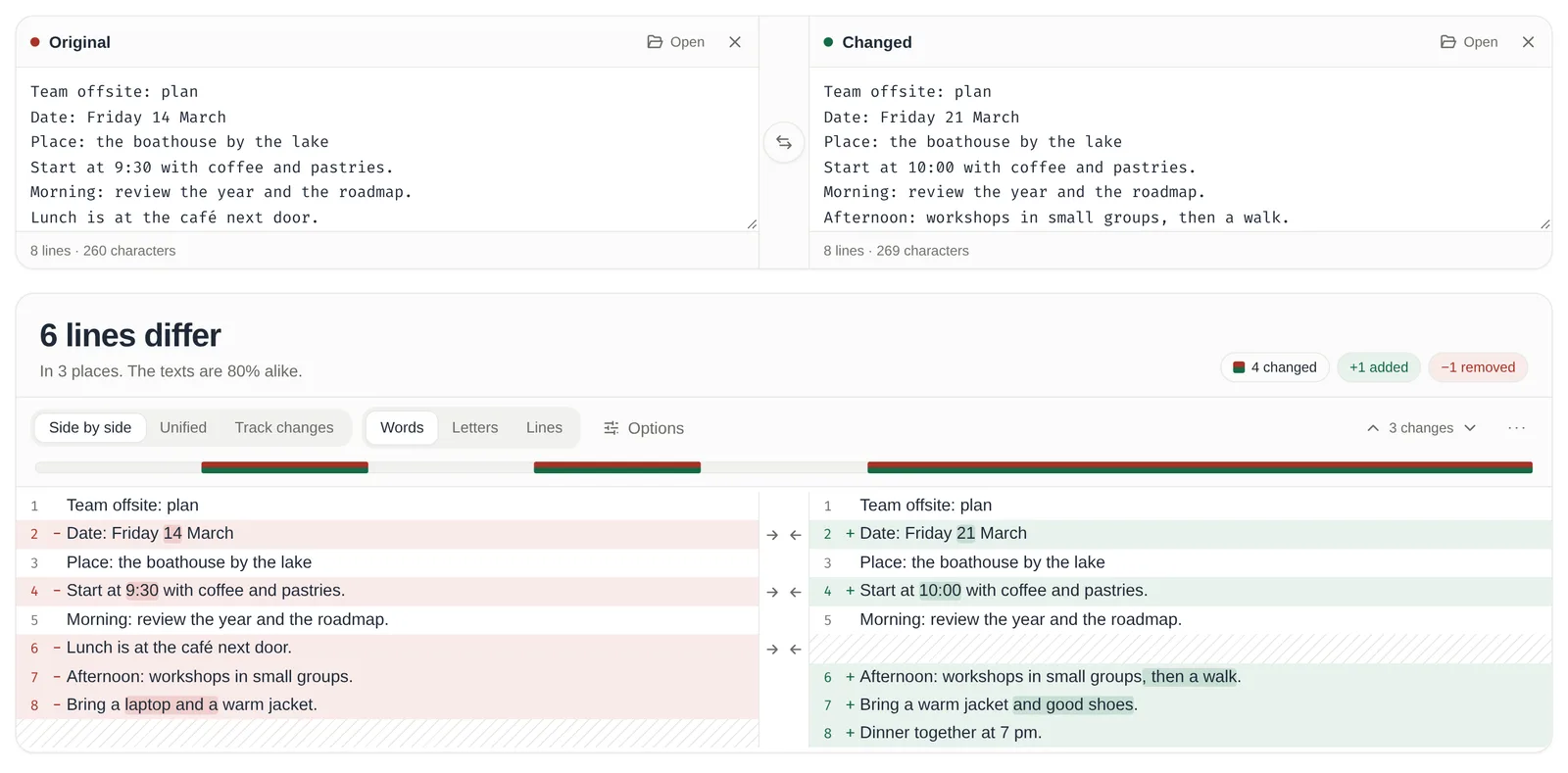
Side by side puts the original on the left and the new version on the right, line for line, with gaps where a line exists on only one side. It's the easiest view for seeing what moved where.
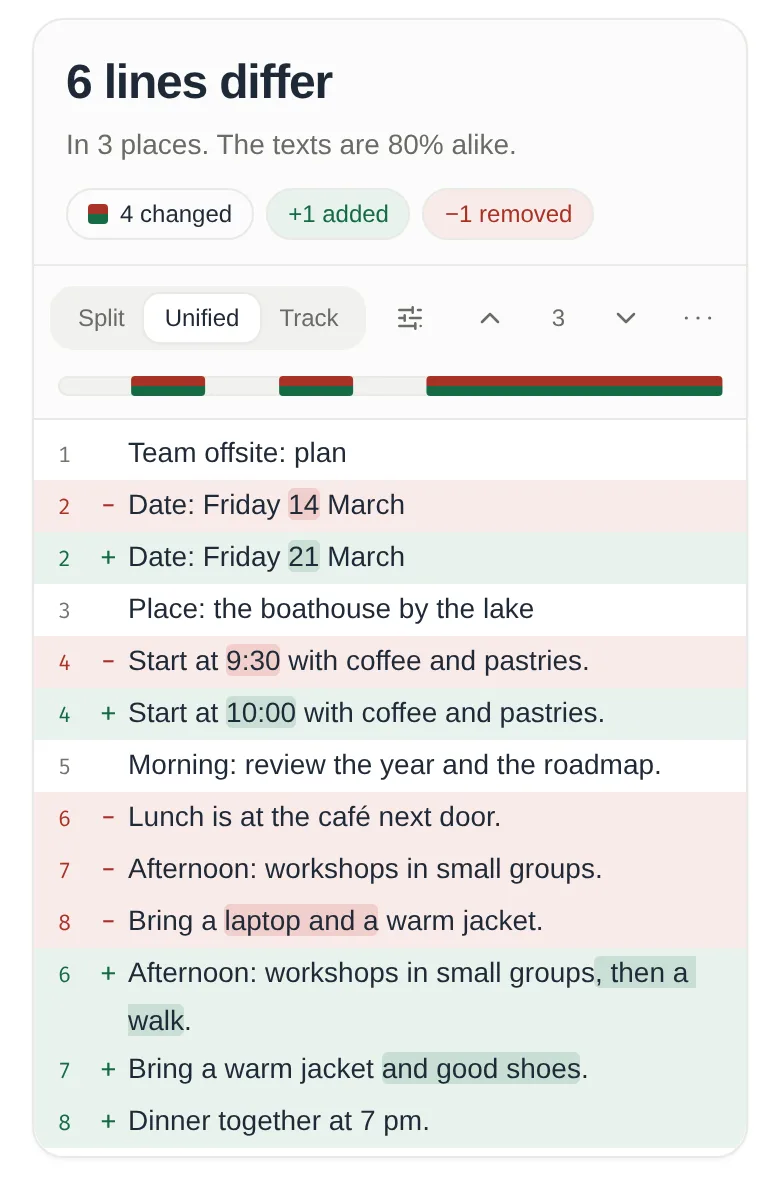
Unified is one column: each change's old lines (marked −) above its new lines (marked +). It's how git and code review tools show changes, and it's the only view that fits a phone screen without squinting.
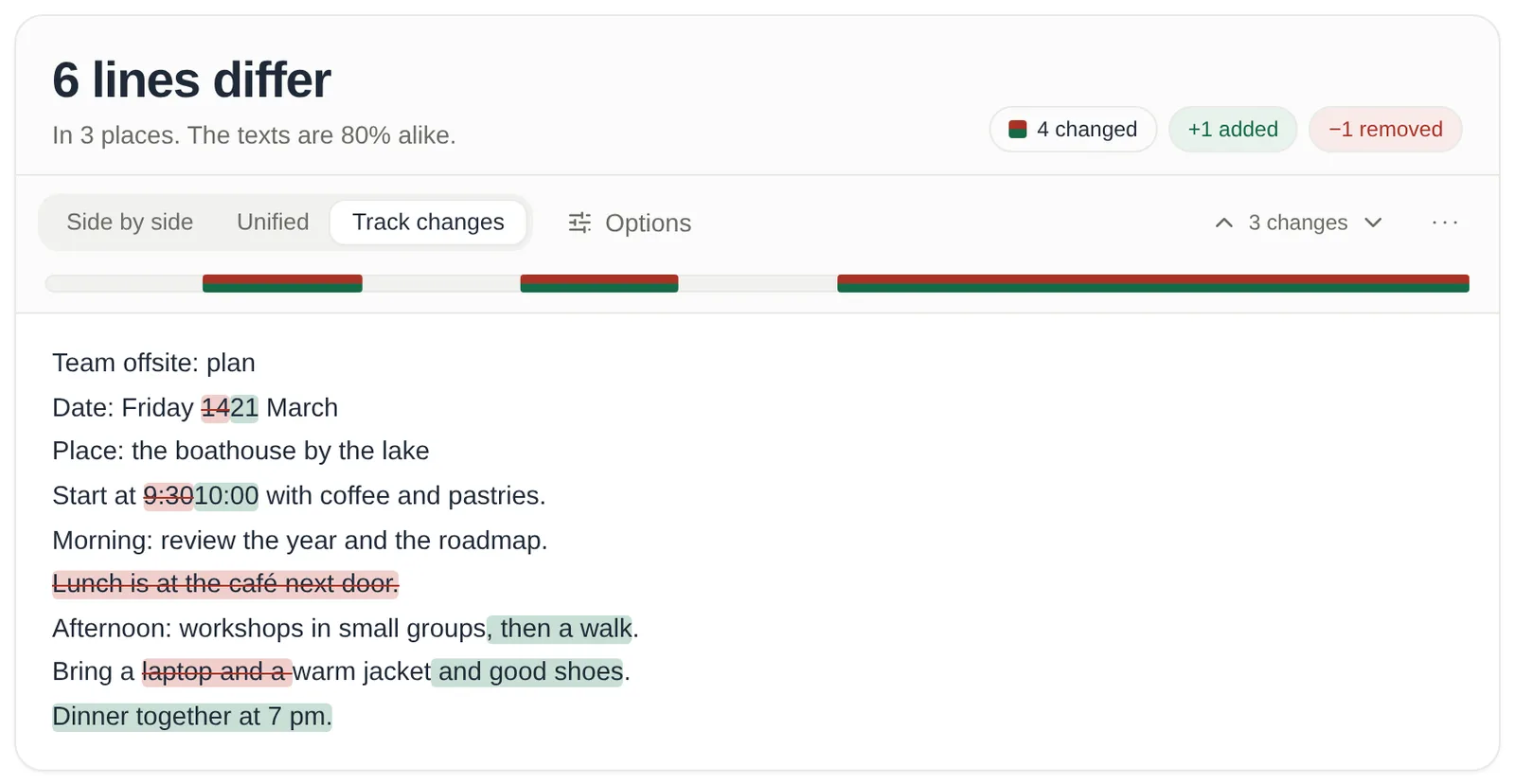
Track changes shows only the new text, with deleted words struck through and new words highlighted, like Word's review mode. For an edited contract or a returned essay, this is usually the quickest read: you read the document once and the edits are right there in the sentence.
Ignore the noise
Half the "changes" in a typical comparison aren't changes at all. Someone re-indented a block, an editor stripped trailing spaces, or a heading went from Title Case to sentence case. Three options deal with most of it:
- Ignore whitespace treats any run of spaces or tabs as one space and ignores spaces at the ends of lines. It's the same idea as
git diff -w, which the Git docs describe as ignoring whitespace "even if one line has whitespace where the other line has none" (Git). - Ignore case treats "Payment" and "payment" as the same word.
- Ignore blank lines stops an extra empty line from showing up as an edit.
Turn them on when you want to know whether the meaning changed. Turn them off when the exact characters matter, as they do in code, passwords or legal definitions.
Comparing Word documents and PDFs
Both files in Word? Use Word's own Compare, linked above. It builds a new document with revision marks and leaves the original untouched. LibreOffice has the same thing, Compare Document, which its help lists under the File menu, or Review > Compare in the tabbed layout (LibreOffice Help).
PDFs, or a mix of formats? Compare the text instead. In our tool, drop a .docx or a .pdf on each side and it pulls out the text, paragraph by paragraph, in your browser. A few things to know:
- A scanned PDF is a picture of a page with no text inside, so there's nothing to compare until someone runs text recognition on it.
- PDFs store text by position on the page, so line breaks often fall in different places in the two versions. If you get a wall of changes, switch to word-level comparison and turn on ignore whitespace.
- Old .doc files need saving as .docx first.
- Formatting (bold, fonts, margins) isn't text, so a text diff won't see it. If a clause was quietly un-bolded, only Word's Compare will tell you.
Reading a .patch
Programmers swap changes as patch files in unified diff format, and once you know three symbols you can read one. Here's the patch our tool downloads for the example above:
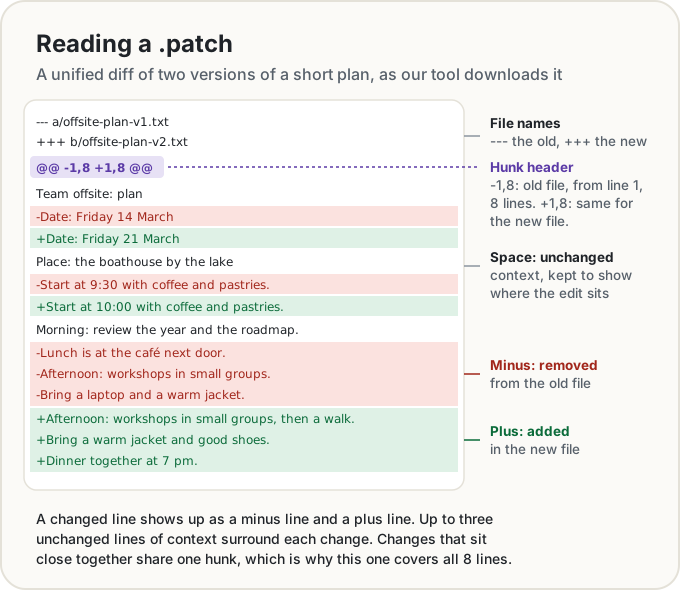
---and+++name the old and new file.@@ -1,8 +1,8 @@is a hunk header: this chunk covers 8 lines of the old file starting at line 1, and 8 lines of the new file starting at line 1.- A line starting with a space is unchanged context, − was removed, + was added.
That's the format described in the GNU diff manual. Git shows three lines of context around each change unless you set a different number (Git), and our download does the same. It's also what git apply and patch read, so a .patch file from our tool can be applied to a codebase like any other.
Why pasting a contract into an upload site is a risk
Some diff websites send your text to their server, to do the comparison or to save a link you can share. That isn't sinister in itself. But once a document is on someone else's server, you're relying on their security, their retention policy and their terms.
Read those terms before you paste anything sensitive. Diffchecker, one of the best-known sites, is unusually direct about it. Its homepage promotes a paid desktop app as "the most secure way to run Diffchecker" because "your diffs never leave your computer", and its desktop page says the app works "without any interaction with our web servers" (Diffchecker Desktop). Its terms (last revised April 2024 when we checked) say you "should not share confidential or sensitive information" through the site, and that by posting, uploading or communicating data you grant it "a perpetual, irrevocable, worldwide license to use, process, and reproduce" that data.
That's an honest description of how a server-based service works, and plenty of sites have similar terms. The safe habit is simple: for anything private, use a tool that compares on your own device.
Our Text Compare does the whole comparison in your browser. The texts aren't sent to a server and aren't put in the page's address; the address only holds view settings like "track changes" or "ignore case". You can check this yourself: load the page, turn off your Wi-Fi, and paste in two new texts. It keeps working.
How diff algorithms work (the short version)
Comparing two texts sounds simple until you try to do it well. There are countless ways to turn one text into another; the trick is finding the one with the fewest edits, fast.
In 1986 Eugene Myers showed that the problem can be drawn as a grid called an edit graph. Put the old text along the top and the new text down the side. Moving right deletes an item, moving down inserts one, and wherever the two items match there's a free diagonal shortcut. The best diff is the path from corner to corner with the fewest right and down steps.
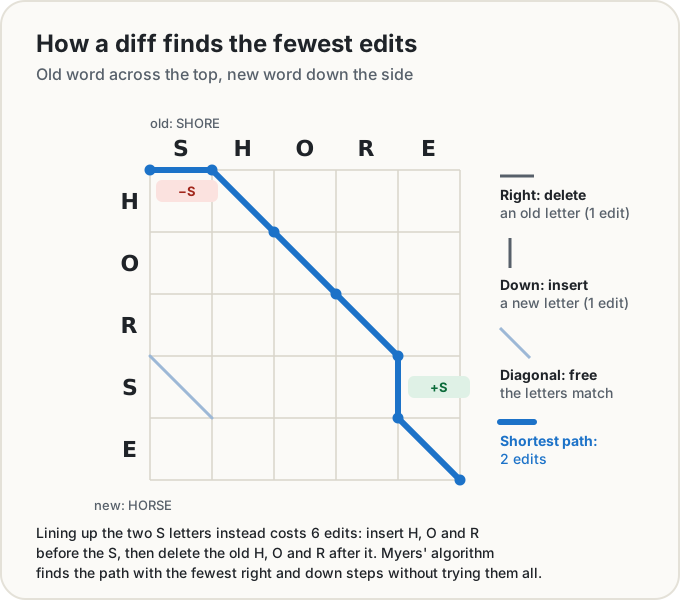
Myers' algorithm finds that path in time proportional to N × D, where N is the combined length of the two texts and D is the number of edits (Myers, 1986). When two versions are mostly the same, D is small, so it's fast in exactly the cases people care about. It's still the default in Git, which lists it as "the basic greedy diff algorithm" alongside alternatives called patience and histogram (Git).
Fewest edits isn't always most readable, though. In code, a minimal diff will happily match a stray closing brace or blank line from one function against another, and the result looks scrambled. The patience approach fixes that by first lining up lines that appear exactly once in each text, which tend to be meaningful, and only then filling the gaps. Our tool does the same: it anchors on unique lines like git diff --patience, runs Myers' algorithm between the anchors, then pairs each edited line with its closest match and compares the two word by word.
A quick checklist
- Put the older version on the left, so additions show as additions.
- Pick words for documents, lines for code, letters for IDs and numbers.
- Turn on ignore whitespace if the files went through different editors.
- Read contracts and essays in track changes; read code in unified or side by side.
- Keep private documents on your device.
Open Text Compare, paste or drop your two versions, and every change shows as you type.
Share this post
Keep reading
Computing· Oct 14, 2026· 11 min
How to Sign a PDF Without Uploading It
Sign a PDF in your browser with nothing uploaded: is an e-signature legal, how it differs from a digital signature, and when to use an e-sign service instead.Computing· Oct 9, 2026· 8 min
How to Merge PDFs Without Uploading Them
Combine PDF files on a Mac, iPhone, Windows PC or in your browser without sending them to anyone's server. Built-in ways, page order, file size and pitfalls.Computing· Oct 14, 2026· 10 min
Does Your Photo Show Where You Live? Check and Remove It
Phone photos can carry GPS coordinates accurate to a few metres. See what yours give away, which apps strip it, and how to remove it before you share.