Does Your Photo Show Where You Live? Check and Remove It
Phone photos can carry GPS coordinates accurate to a few metres. See what yours give away, which apps strip it, and how to remove it before you share.
Computing··10 min read
If your camera app is allowed to use your location, then yes: every photo you take has the spot where you stood written inside the file, usually to within a few metres. Take a picture in your kitchen and the file knows which house. Whether anyone else can read it depends on how you share the photo, not on the photo itself.
The quick way to find out is to open a photo in our EXIF Viewer, which reads the file in your browser and puts the location on a map without uploading anything. Below: what's stored, how precise it is, how to stop your phone adding it, which apps remove it for you, and what else a photo says about you.
What a photo stores about where it was taken
Photos from phones and cameras carry metadata in a format called Exif, a standard published by the Camera & Imaging Products Association (CIPA). Inside the Exif block there's a separate GPS block. It holds the latitude and longitude (as degrees, minutes and seconds), the altitude, the direction the camera was facing, the date and time in UTC, and, on newer phones, an estimate of how accurate the position is.
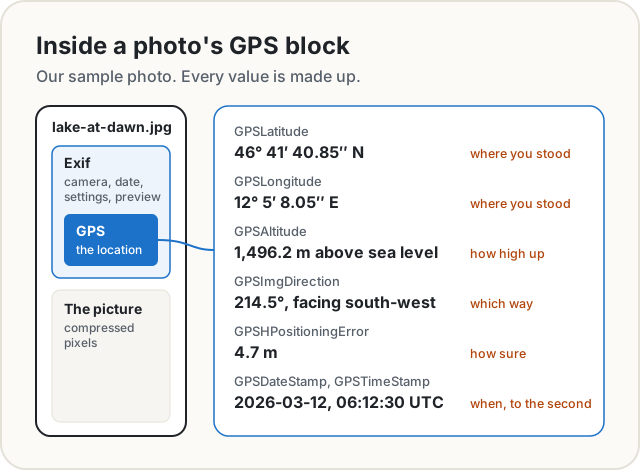
Those values come from our viewer's sample photo, and every one of them is made up. They're realistic, though: this is what a phone writes.
On an iPhone, Apple says the Camera works out the position from cellular, Wi-Fi, GPS and Bluetooth signals, then embeds the coordinates in each photo and video. So it works indoors too, where GPS alone struggles.
How precise is it?
Often precise enough to tell your house from your neighbour's. The US government's GPS site says GPS-enabled smartphones are typically accurate to within a 4.9 m radius under open sky, and less accurate near buildings, bridges and trees.
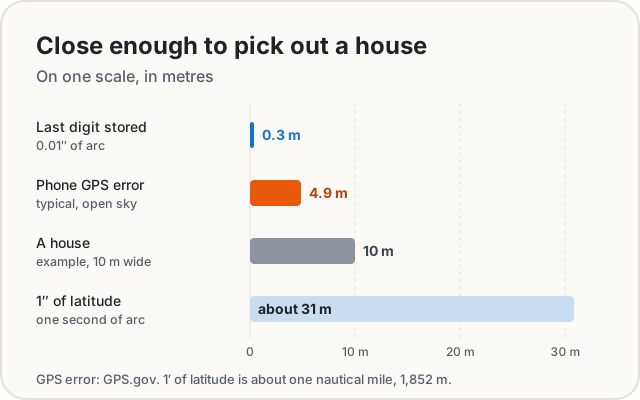
The number in the file is even finer than that. A minute of latitude is about one nautical mile (1,852 m), so a second is about 31 m, and our sample stores seconds to two decimal places: steps of about 30 cm. The real limit is the phone's fix, not the file. Either way, it's a house, not a neighbourhood.
Stop your phone adding it
You can turn location off for the camera alone and keep it for maps and everything else.
iPhone. Go to Settings > Privacy & Security > Location Services > Camera and choose Never. New photos won't carry a location. For photos you already have, you've got two options:
- Share without it. In Photos, select the pictures, tap the Share button, then Options, and turn off Location. The sheet then says "Location Not Included".
- Remove it from the photo. Open the photo, tap the More button, then Adjust Info > Adjust Location > No Location. On a Mac, select photos in Photos and choose Image > Location > Hide Location.
Want to see how many of your photos have a location? On an iPhone, the Map collection in Photos shows every picture with GPS data on a map. It's a sobering scroll.
Android. The setting lives in the camera app, and its name depends on who made the phone:
- Google Pixel: open the Camera, tap Settings at the bottom left, then More settings, and turn off Save location.
- Samsung Galaxy: open the Camera, tap the settings gear and turn off Location tags.
Android also protects the photos you already have, a little. Since Android 10, an app that reads your photo library gets the location blanked out unless it asks for, and you grant, a separate permission to read photo locations. That covers apps poking around your gallery. It doesn't help once you've sent the original file to someone.
Which apps remove it when you share?
This is where it gets messy, because few services document what they do, and some have changed over time. Here's what we could confirm from the services themselves:
- Signal strips image metadata on purpose. A Signal developer put it simply on the project's issue tracker: "Signal intentionally strips image metadata for privacy reasons."
- Slack confirmed to TechCrunch in May 2020 that it had started stripping Exif data from uploaded images, GPS coordinates included. The make and model of the device stayed in.
- iPhone share sheet leaves the location out when you turn it off under Options, as above.
The pattern behind most of the rest: when a chat app sends a photo as a photo, it usually shrinks and recompresses it, and the new file often doesn't carry the old metadata. When you send it as a file or document (the option people pick to avoid the compression), the app sends your original, and the original has everything in it. The same goes for an email attachment or a shared cloud folder: it's the file itself.
And even when a site strips the location from the copy other people see, you uploaded the original. The service had the coordinates first.
The reliable test takes a minute: send a photo to yourself the way you normally share, save what arrives and drop it into the EXIF Viewer. If there's a map, there's a location.
When it went wrong
The best-known case is from December 2012. John McAfee, the anti-virus founder, was on the run and wanted for questioning in Belize. Vice magazine announced it was with him and posted a photo taken on an iPhone. As NPR reported, the magazine forgot to remove the location metadata. The tech site The Next Web pulled the GPS coordinates out of the file: they pointed to Guatemala, near the Belize border. McAfee first claimed he'd falsified the data, then wrote on his blog the next day: "I am in Guatemala".
Earlier that year, the Electronic Frontier Foundation described a hacker who posted a photo taken with an iPhone 4. The FBI used its Exif data to work out that the picture had been taken at a house in Wantirna South, Australia.
In both cases nobody meant to share a location. One photo did it anyway.
What else a photo gives away
Location is the headline, but it's rarely alone. Our sample shows the usual set:
| What's in the file | What it can tell someone |
|---|---|
| Date and time taken, with time zone | When you were there, to the second |
| Camera make, model and lens | Which phone you own |
| Camera serial number (some cameras) | That two photos came from the same camera |
| Software | Which app edited it |
| A small preview picture | Sometimes, what you cropped out |
The serial number is the sneaky one. The Exif standard has a tag for it, and as the EFF points out, it lets someone search the internet for other photos taken with the same camera.
The preview is the other surprise. Exif files can hold a small thumbnail of their own, made when the photo was taken. If an app crops the picture but doesn't redraw the thumbnail, the old view is still inside. Our viewer's sample is set up exactly like that: its hidden preview is a different shape from the photo and shows a cabin that was cropped out of the main picture.
Check and remove it with our tool
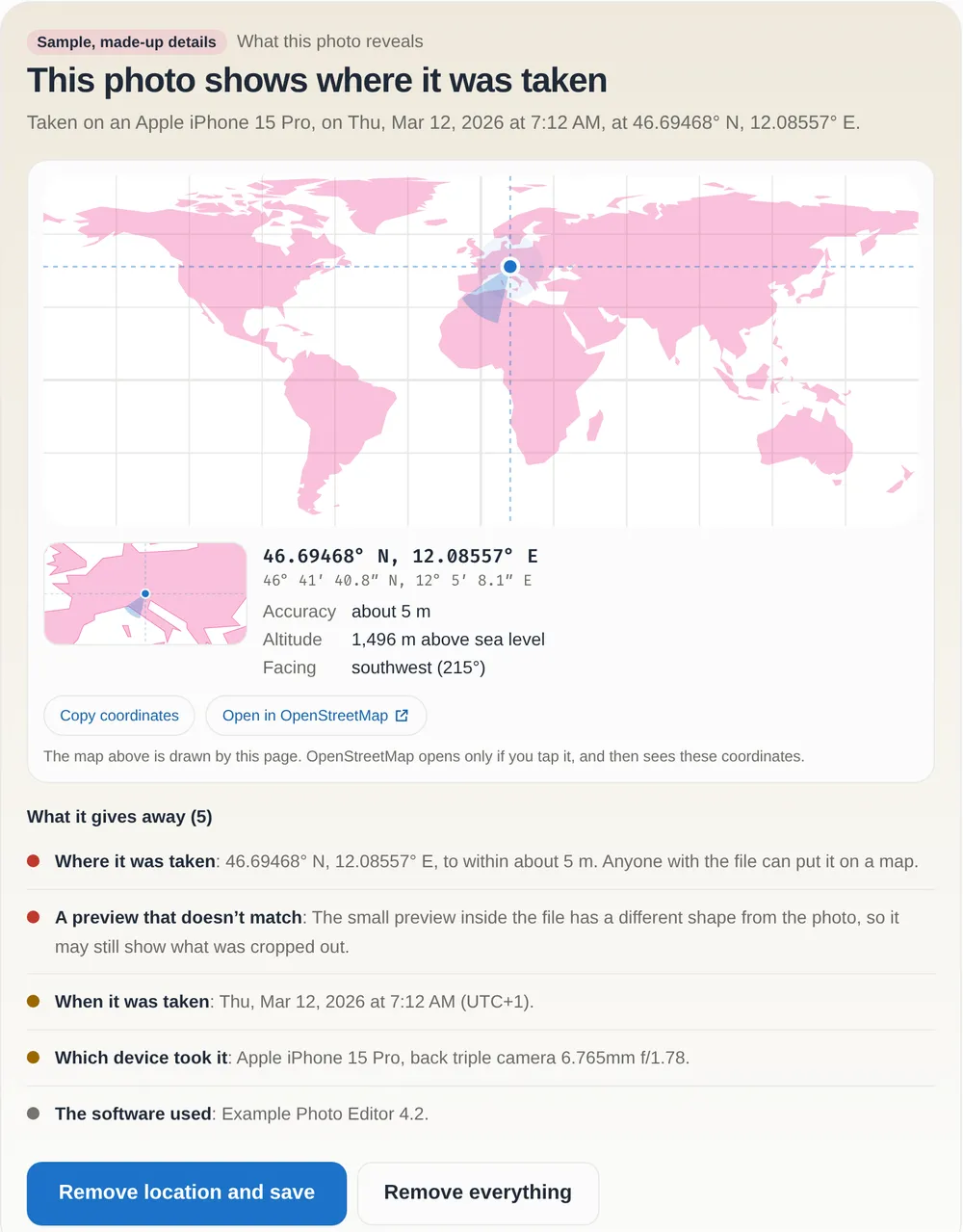
The EXIF Viewer reads a photo without uploading it. It walks through the file's own structure to find the Exif, XMP and IPTC blocks, decodes every tag and puts any location on a world map that's drawn by the page itself, so no map service is asked about your coordinates. (There's an Open in OpenStreetMap button if you want a street map, and only that sends the coordinates anywhere.)
- Open the EXIF Viewer and drop in a photo, or paste one. JPEG, PNG, WebP, HEIC and AVIF all work.
- Read the summary at the top: where, when and on what it was taken, and anything that can identify you.
- Tap Remove location and save to keep everything except the location, or Remove everything.
For a batch, use Remove EXIF data. Choose Everything or Only the location, then drop in as many photos as you like. Each one is cleaned as it lands. Leave Keep rotation ticked and sideways phone photos keep the one tag that turns them upright.
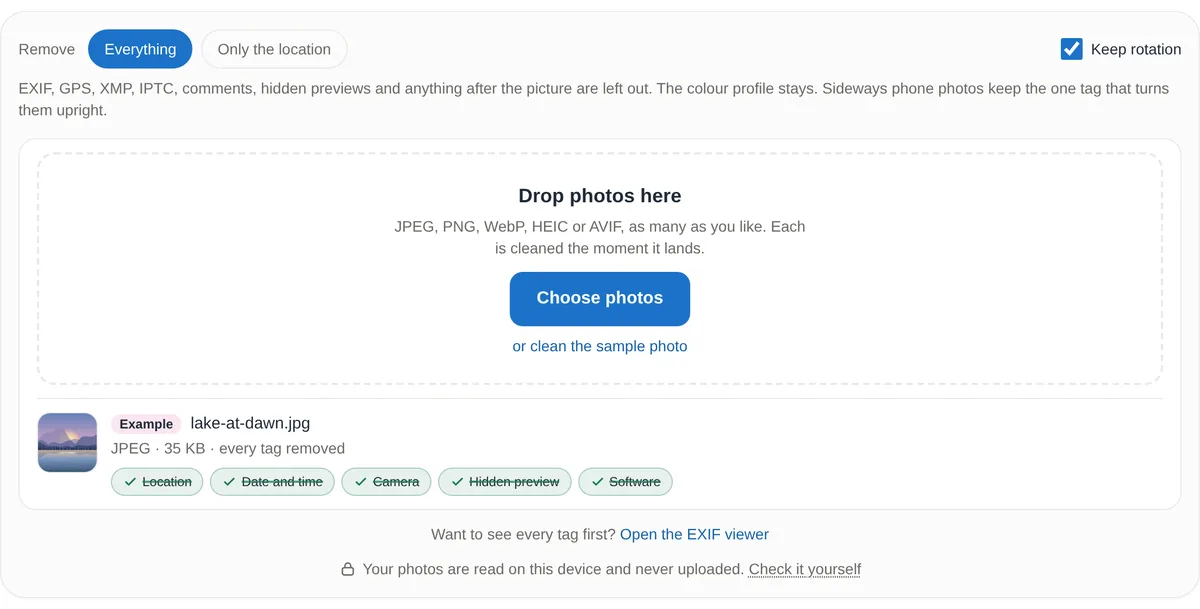
The remover doesn't re-save the picture. It rewrites the file without the metadata blocks and copies the image data across unchanged, so there's no extra compression and no quality lost. Then it reads the new file again to check the tags really are gone.
If you're editing a photo anyway, files exported from our photo editor come out with no Exif at all. We covered that, and how to check a site isn't uploading your pictures, in how to edit photos without uploading them.
The short version
- If your camera has location access, your photos carry GPS coordinates good to a few metres, plus the time, the device and sometimes a hidden preview.
- Turn it off per camera: iPhone, Settings > Privacy & Security > Location Services > Camera > Never; Pixel, Save location; Samsung, Location tags.
- Signal and Slack strip it. Sending as a file, a document or an email attachment usually sends the original, location and all.
- Before posting a photo of your home, your kids or your car, open it in the EXIF Viewer and remove what you don't want to share.
Sources
- Camera & Imaging Products Association (2023). CIPA DC-008-Translation-2023: Exif Version 3.0. cipa.jp. We checked the GPS and serial-number tags against Exif 2.3 (CIPA DC-008-2012).
- GPS.gov. GPS accuracy. US government.
- Apple. Manage location metadata in Photos. Personal Safety User Guide.
- Google. Turn off photo and video location stamps. Pixel Camera Help.
- Samsung. How can I activate location tags on my Galaxy device? Samsung Support.
- Android Developers. Access media files from shared storage: media location permission.
- Signal. Issue #5464: Photo download should preserve metadata. Signal-iOS on GitHub.
- TechCrunch (11 May 2020). Slack now strips location data from uploaded images.
- NPR (4 December 2012). Betrayed by metadata, John McAfee admits he's really in Guatemala.
- Electronic Frontier Foundation (2012). A picture is worth a thousand words, including your location.
- Sample photo: the made-up example built into our EXIF Viewer. The picture, place, time and device details are invented.
Share this post
Keep reading
Computing· Oct 8, 2026· 6 min
How to Edit Photos Without Uploading Them
Crop, adjust, blur and add text to photos in your browser without sending them anywhere: what EXIF location data is, and how to check nothing is uploaded.Computing· Oct 9, 2026· 8 min
How to Merge PDFs Without Uploading Them
Combine PDF files on a Mac, iPhone, Windows PC or in your browser without sending them to anyone's server. Built-in ways, page order, file size and pitfalls.Computing· Oct 9, 2026· 8 min
What Is a HEIC File, and How Do You Open It?
HEIC is the photo format iPhones save by default. Why Windows, Android and upload forms often can't open it, and the cleanest ways to turn it into a JPG.