Webcam Not Working? Fixes for Chrome, Windows, Mac and Phones
Test your webcam in the browser, then fix it in order: site permission, Windows or Mac privacy, wrong camera, a busy app, shutter, driver, USB, light.
Computing··13 min read
A webcam that "stops working" is rarely broken. Something between the lens and the call is switched off: the browser has blocked the site, Windows or macOS has blocked the browser, the call picked the wrong camera, or another app grabbed it first. Laptops add a couple of physical traps of their own, like a shutter you forgot you closed.
So test the camera on its own first, then work down the list below. It starts with the quickest checks.
First, test the camera on its own
Open our Webcam Test, press Start the camera and allow the camera when your browser asks. If a picture appears and the card says Works, your camera, its driver and your system's settings for the browser are all fine, and the problem is in the app you were using. The card also shows what the camera really delivers, measured from the video itself rather than read off the box: the picture size, and how many frames arrived in the last second.
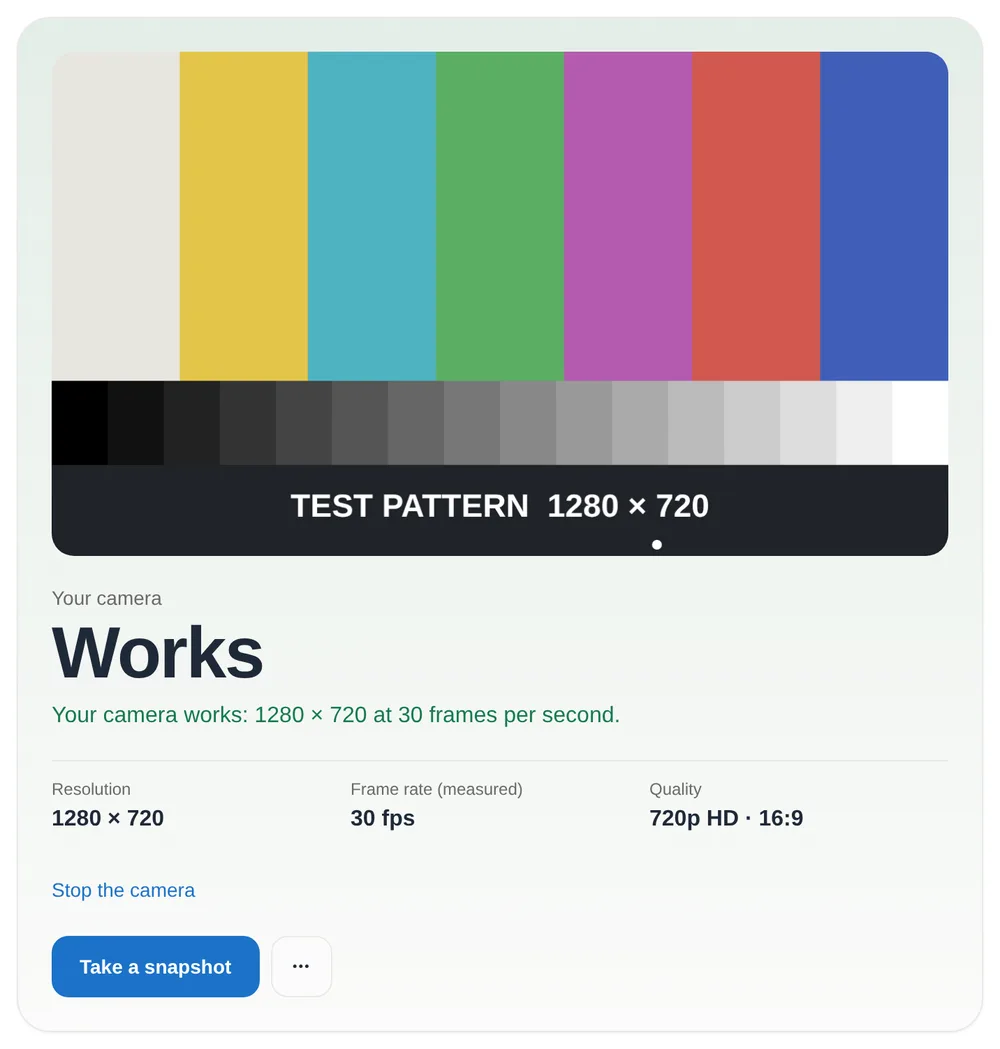
If it doesn't work, the card says why in plain words: Blocked by the browser, Blocked by your system, In use, or Not found. If it says Works but the picture is black, choppy or dark, that's a clue too.
On privacy: the picture goes from your camera into a video player on the page, in that tab, and nowhere else. Nothing is recorded or uploaded. When you press Stop the camera or leave the page, the page lets go of the camera, so its light goes out. Take a snapshot copies the current frame into an image held in the tab's memory. You can save it to your device or delete it, and it's gone when you leave.
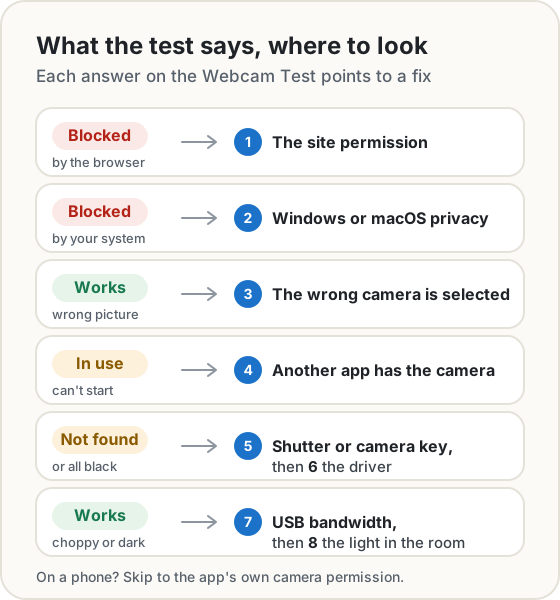
1. The browser has blocked the site
Browsers ask once per site and remember the answer. If you clicked Block months ago, or closed the prompt, the camera can work on one meeting site and stay blocked on another. The fix is the same as for a microphone, which our mic troubleshooting guide covers in more detail.
Chrome: click the icon at the left of the address bar, switch Camera on and reload. For every site at once, go to Settings > Privacy and security > Site settings > Camera, where Google's help page says you can review the sites that are allowed or not allowed and delete an old decision.
Edge: Microsoft points to the list at edge://settings/content/camera.
Firefox: click the permissions icon at the left of the address bar, then the X next to Blocked or Blocked Temporarily, so Firefox asks again.
Safari on a Mac: Apple's camera guide says to choose Safari > Settings, click Websites, then Camera, and set the site to Allow.
Browsers also refuse the camera on plain http:// pages. Only secure pages get one, whatever your settings say.
2. Windows or macOS has blocked the browser
If the site is allowed and the test says your system is blocking the browser, the operating system is refusing the whole browser, on every site.
Windows 11: open Start > Settings > Privacy & security > Camera and check three switches:
- Camera access is on. If it's greyed out, Microsoft says an administrator on the device has to turn it on.
- Let apps access your camera is on.
- Let desktop apps access your camera is on.
The third is the one people miss. Microsoft lists browsers like Edge and call apps like Teams as desktop apps, and desktop apps can't be allowed one at a time: it's one switch for all of them. Microsoft also warns that after a recent Windows 11 update some apps may no longer have camera access by default, so this is worth checking even if it worked last week.
macOS: choose Apple menu > System Settings > Privacy & Security > Camera, and turn your browser on in the list. Apple's own apps, like FaceTime and Photo Booth, have access automatically, which is why FaceTime can work while Chrome shows nothing. Google's help adds that your Mac may ask you to quit the browser to save the change. Do it, then reopen.
3. The wrong camera is selected
A laptop with a USB webcam plugged in has two cameras. Add a capture card or an iPhone and you have four, and the call app picks one.
- Chrome: Settings > Privacy and security > Site settings > Camera has a drop-down for the camera sites get by default.
- The call app: most have their own camera setting, separate from the browser's and the system's.
- Windows 11: Settings > Bluetooth & devices > Cameras lists every connected camera. A camera someone switched off appears under Disabled cameras, and Microsoft notes that turning it back on needs administrator access.
- The Webcam Test: once it's running, the Camera picker lists every camera. Until you allow access, browsers hide the cameras' names, so the list fills in after you press Start.
Mac with an iPhone nearby: this one surprises people. Apple's Continuity Camera lets an iPhone act as the Mac's webcam, and when the phone is mounted and turned sideways, Apple says apps can choose it automatically. So the call shows the view from your phone instead of the laptop. Pick the built-in camera in the app's video menu, or tap Disconnect on the iPhone, which Apple says removes it from the apps' camera lists. To stop it happening, turn off Continuity Camera on the iPhone under Settings > General > AirPlay & Continuity.
4. Another app has the camera
Microsoft's Edge troubleshooting guide puts it plainly: physical media devices, such as USB webcams, generally support only one active capture stream at a time. When Teams, Zoom or the Windows Camera app holds the camera, the browser gets a NotReadableError instead of a picture. Our Webcam Test shows that as In use.
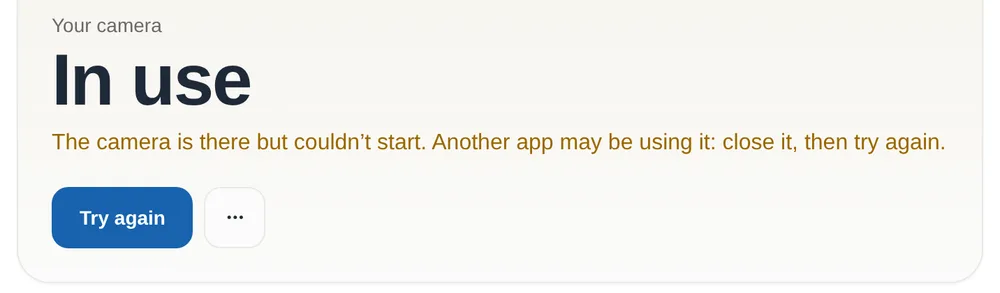
Quit the other app properly. Many keep running in the system tray or the menu bar after you close the window. On Windows, Microsoft suggests opening Task Manager, finding the app that's using the camera and choosing End task. Its Camera app reports the same situation as error 0xA00F4243: another app or process is using the camera.
On a Mac, the green light beside the camera is your tell. Apple says it glows whenever the camera is on and goes out when you quit all the apps that can use it. If it's already lit before you've joined the call, something else has the camera.
5. A privacy shutter or a camera key
Microsoft's camera guide lists the physical switches worth hunting for, because they aren't always obvious:
- a camera key on the keyboard, often used with Fn;
- a dedicated camera button;
- a sliding switch on the side of the laptop;
- a small shutter slider built into the camera bezel.
A closed shutter covers the lens, so the test can say Works while showing a black picture. A switch that cuts the camera electrically is different: Microsoft says the computer may not recognise that a camera is installed at all, so the test says Not found, or apps show a camera with a line through it.
6. The driver (Windows)
If the camera still isn't found, Microsoft's steps are, in order:
- Run the camera troubleshooter: Settings > System > Troubleshoot > Other troubleshooters, then Run next to Camera.
- Open Device Manager and look under Cameras, Imaging devices or Sound, video and game controllers. If the camera isn't there, choose Action > Scan for hardware changes.
- If it stopped working after an update, open the camera's Properties, then Driver > Roll Back Driver.
- Otherwise choose Uninstall device, tick Attempt to remove the driver for this device, scan for hardware changes and restart.
For a USB webcam there's one more trick. Microsoft notes that most USB webcams follow the standard USB Video Class, so they work with the driver built into Windows. In Device Manager choose Update driver > Browse my computer for drivers > Let me pick from a list, then USB Video Device. The catch, in Microsoft's words: the built-in driver may not support every feature, so Windows Hello face sign-in can stop working on a camera that relied on the maker's driver.
Microsoft also mentions antivirus software, some of which can block the camera, and restarting properly: waking from sleep isn't the same as a restart.
7. An external webcam on a busy USB hub
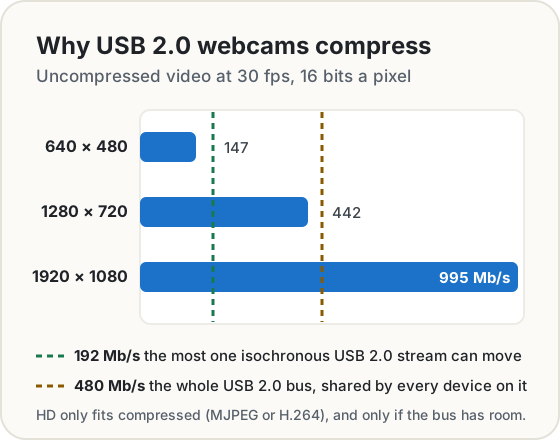
Video is heavy. A 1080p picture is 1920 × 1080 pixels, and in YUY2, the common uncompressed format Microsoft documents at 16 bits a pixel, 30 of them a second come to about 995 megabits a second.
USB 2.0 signals at 480 Mb/s, and every device on the same bus shares it. A webcam can stream with isochronous transfers, which reserve a slice of every 125-microsecond microframe. The USB 2.0 specification caps one such stream at 3,072 bytes a microframe (192 Mb/s, in the spec's own figure), and all reserved transfers together at 80% of each microframe. So a 1080p camera on USB 2.0 has to send compressed video, such as MJPEG or H.264, and it still needs room on the bus. The USB Video Class FAQ explains that when Windows or macOS can't meet a camera's bandwidth request, the camera doesn't get its reservation.
In practice, two webcams, or a webcam sharing a hub with a capture card, can leave one of them refusing to start or stuck at a low setting. Plug the camera straight into the computer rather than a hub, try a different port (Microsoft's first driver step), and if you must use a hub, Microsoft's advice for USB devices is to make sure it has power. Then use the Webcam Test's Quality setting to ask for 1080p and check whether the card really shows 1920 × 1080 at a full frame rate.
8. Dark, grainy or choppy: the light
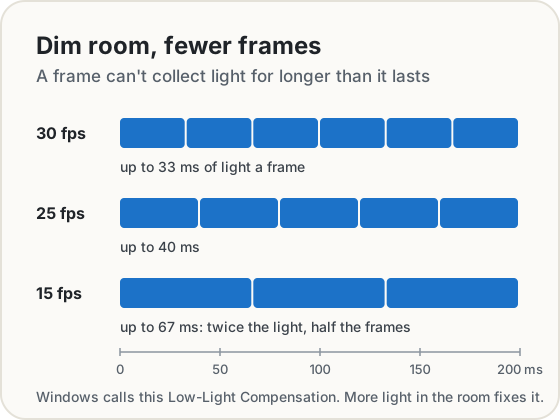
A frame can't collect light for longer than it lasts. Microsoft's camera driver documentation spells it out: at 30 frames per second the exposure can't exceed 33 ms. If the camera is allowed to slow down, it can compensate for dim light, for example dropping to 25 frames per second for a 40 ms exposure. Windows calls this Low-Light Compensation.
That's why the same camera can read 30 fps by a window and 15 fps in a dim room on the Webcam Test. It's trading smoothness for light, not failing. The alternative is worse: keep the frame rate and brighten a dark frame, and the grain gets brightened with it.
The fix is light, not settings. Face a window or a lamp rather than sitting with one behind you. On Windows 11, Settings > Bluetooth & devices > Cameras also lets you set a camera's default brightness and contrast, though Microsoft notes that apps can change them while they use the camera.
On a phone
Phones ask per app, not per site, so the switch to check is the app's own permission.
Android: Settings > Apps, choose the app, then Permissions > Camera, and pick Allow only while using the app or Ask every time instead of Don't allow. Google's help also describes a phone-wide switch under Security & privacy > Privacy > Privacy controls > Camera access: if it's off, no app gets the camera. For a website in Chrome on Android, use More > Settings > Site settings > Camera.
iPhone: Settings > Privacy & Security > Camera lists every app that has asked, with a switch for each. Apple adds that a green indicator appears whenever an app is using the camera. If you can see it during a call, the phone is sending video, and the problem is in the app or at the other end.
The Webcam Test runs on phones too. Allow the camera, then pick the back camera from the Camera list to check it as well.
Still nothing?
Restart the computer, then test the camera in a second app: the Camera app on Windows or Photo Booth on a Mac. Microsoft's logic is simple: if it works there, the problem is in the app you were using. Try another browser too. If the Webcam Test can't see the camera in two browsers after a restart, it's time to suspect the hardware, and Google's last step is the right one: contact the camera's maker.
Getting ready to record once it works? Our Teleprompter scrolls your script while you look at the lens.
Sources
- Google. Use your camera and microphone in Chrome, desktop and Android versions.
- Microsoft Learn. Camera or microphone doesn't work on websites in Microsoft Edge.
- Microsoft Support. Camera doesn't work in Windows, Manage app permissions for a camera in Windows, Manage cameras with Camera settings in Windows 11 and Mouse and keyboard problems in Windows (USB hubs and ports).
- Microsoft Learn. KSPROPERTY_CAMERACONTROL_AUTO_EXPOSURE_PRIORITY (low-light compensation) and Recommended 8-bit YUV formats for video rendering (YUY2 at 16 bits a pixel).
- Mozilla Support. How to manage your camera and microphone permissions with Firefox.
- Apple Support. Control access to the camera on Mac, Use your iPhone as a webcam on Mac, Use iPhone as a webcam and Control access to hardware features on iPhone.
- Google. Change app permissions on your Android phone.
- USB Implementers Forum. Universal Serial Bus Specification, Revision 2.0, sections 5.6.3 and 5.6.4 (isochronous transfer limits), and USB Video Class 1.5 (the FAQ's section 2.2 on bandwidth, and the MJPEG and H.264 payload formats).
- MDN. MediaDevices: getUserMedia() (secure pages only) and MediaDevices: enumerateDevices() (device names hidden until you allow access).
Share this post
Keep reading
Computing· Oct 9, 2026· 10 min
Mic Not Working? Fixes for Chrome, Windows, Mac and Phones
Test your mic in the browser first, then fix it in order of likelihood: site permission, Windows or Mac privacy, wrong input, a busy app, Bluetooth, phones.Computing· Oct 14, 2026· 10 min
Does Your Photo Show Where You Live? Check and Remove It
Phone photos can carry GPS coordinates accurate to a few metres. See what yours give away, which apps strip it, and how to remove it before you share.Computing· Oct 7, 2026· 10 min
Chrome's Built-in AI (Gemini Nano): What It Can and Can't Do
Chrome now ships a small AI model that runs on your own computer. What it's good at, where it falls short, which APIs are ready, and when to use your own key.