Mic Not Working? Fixes for Chrome, Windows, Mac and Phones
Test your mic in the browser first, then fix it in order of likelihood: site permission, Windows or Mac privacy, wrong input, a busy app, Bluetooth, phones.
Computing··10 min read
When a microphone "stops working", the cause is usually a setting, not the hardware. Something is blocking it: the browser has blocked the site, the operating system has blocked the browser, or the call app is listening to a different microphone. Each of those takes a minute to fix once you know which one it is.
So test first, then work down the list below. It starts with the causes that are quickest to check and easiest to trip over.
First, test the mic on its own
Open our Mic Test, press Start the test and allow the microphone when your browser asks. Talk, or clap. If the bar jumps and the card says Works, your microphone, its driver and your system's settings for the browser are all fine. The problem is in the app you were using: its permission, its mute button or the microphone it picked (skip to another app).
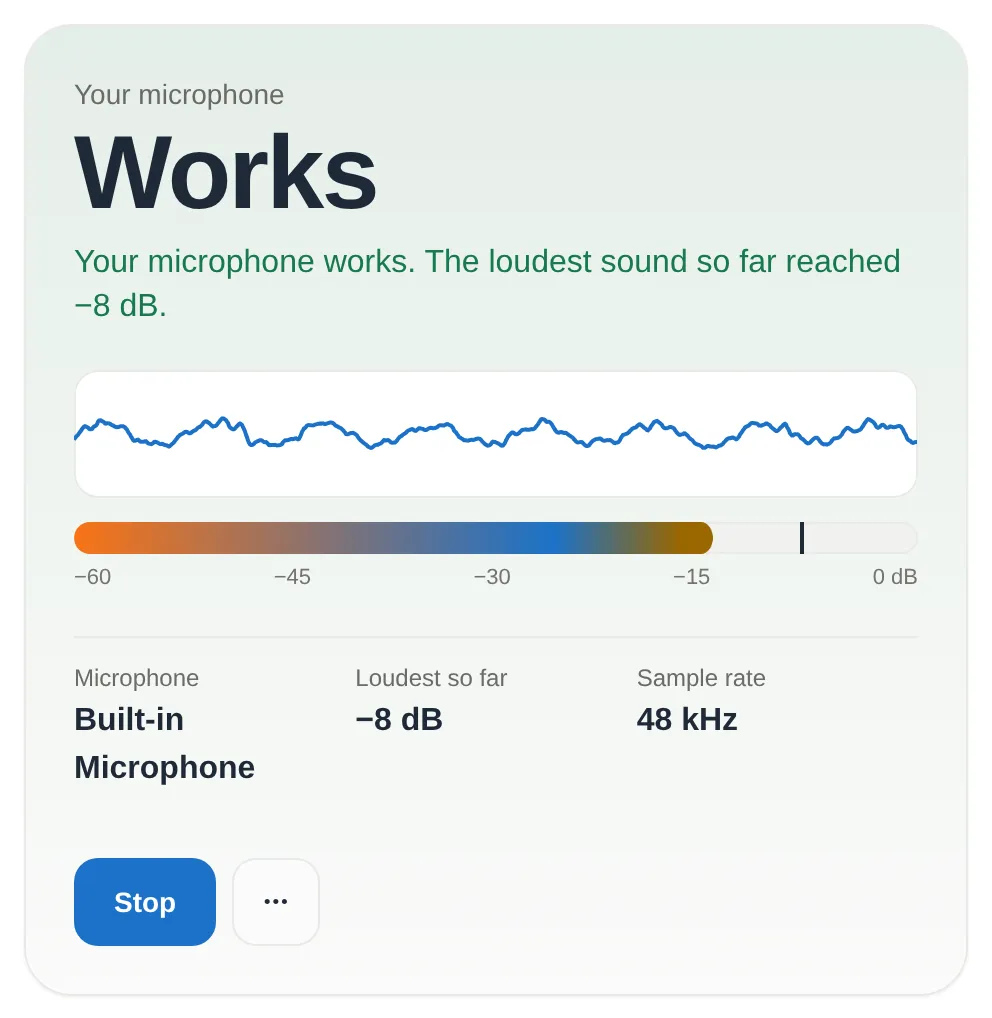
If it doesn't work, the card tells you why in plain words: Blocked by the browser, Blocked by your system, In use by another app, Not found, Silent or Muted. Each one points to a section below.
On privacy: the sound goes from your microphone to the page's own code in that browser tab and nowhere else. Nothing is uploaded. If you press Record 5 seconds to hear yourself back, the clip is kept in the tab's memory, never saved to disk, and it's gone when you delete it or leave the page.
Why it fails: four switches in a row
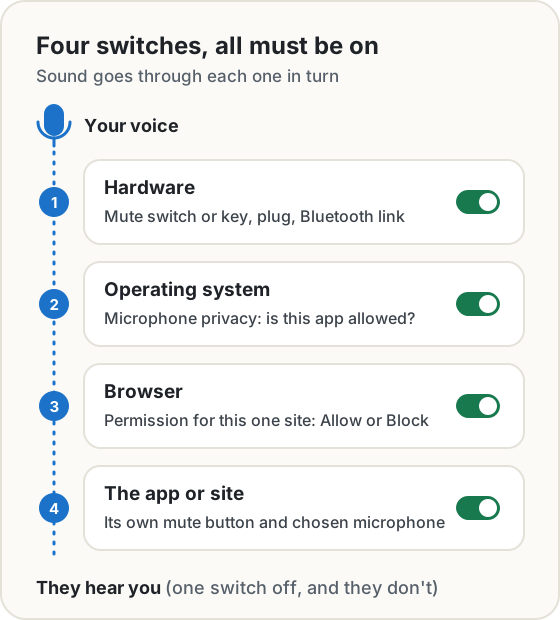
Your voice passes through four switches on its way to the other person, and every one has to be on. Microsoft's own troubleshooting guide for Edge describes the same layers: the operating system's privacy settings, the browser's site permissions and the device driver, with other apps such as Teams or Zoom able to lock the device.
1. The browser has blocked the site
This is the easiest one to trip over. You clicked Block once, maybe months ago, or dismissed the prompt, and the browser remembered. Browsers ask per site, so the mic can work on Zoom's site and still be blocked on Google Meet.
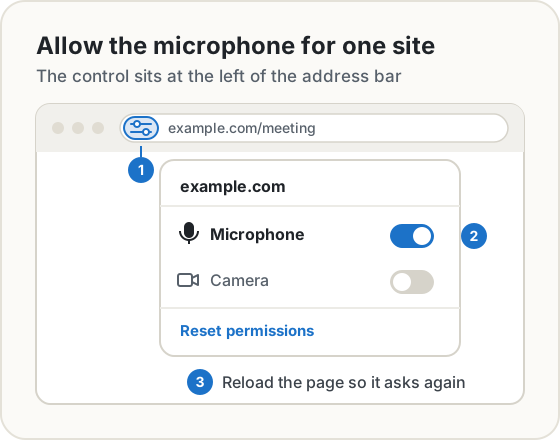
Chrome: click the icon at the left of the address bar, switch Microphone on, and reload. Or go to Settings > Privacy and security > Site settings > Microphone, where Google's help page says you can review the sites that are allowed or not allowed and delete an old decision. When Chrome asks, it offers Allow while visiting the site, Allow this time or Never allow. "This time" means it will ask again next visit.
Edge: the same idea. Microsoft's guide points to the lists at edge://settings/content/microphone, where you can allow or block a site.
Firefox: click the permissions icon at the left of the address bar, then the X next to Blocked or Blocked Temporarily, so Firefox asks again on your next visit. The full list is in Settings > Privacy & Security > Permissions > Microphone > Settings…. When Firefox prompts, tick Remember this decision if you don't want to be asked every time.
Safari on a Mac: open the Page menu in the address field, choose Website Settings, and set Microphone to Allow. For every site at once: Safari > Settings > Websites > Microphone.
One more thing that blocks the mic silently: browsers only offer it to secure pages. On a plain http:// page there is no microphone at all, whatever your settings say.
2. Windows or macOS has blocked the browser
If the site is allowed and the Mic Test says your system is blocking the browser, the operating system is refusing the whole browser, on every site.
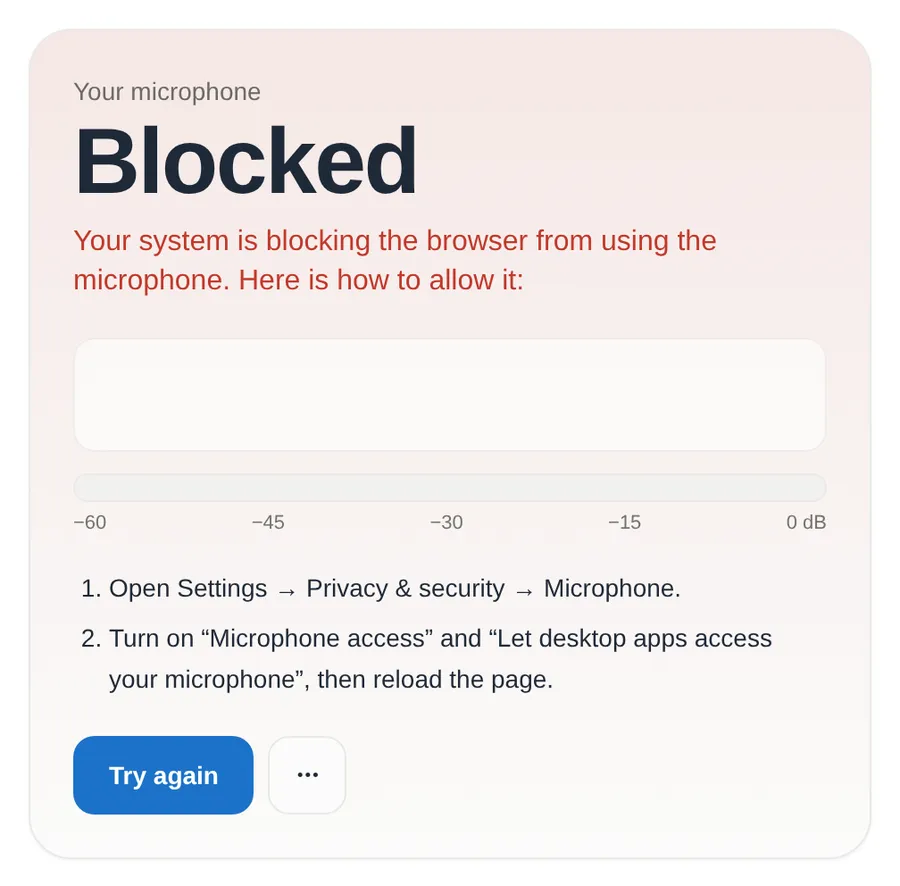
Windows 11: open Start > Settings > Privacy & security > Microphone and check three switches:
- Microphone access is on.
- Let apps access your microphone is on.
- Let desktop apps access your microphone is on.
The third is the one people miss. Browsers are desktop apps as far as Windows is concerned (Microsoft says so for Edge), and Microsoft notes that you can't allow or block desktop apps one by one: it's one switch for all of them.
macOS: choose Apple menu > System Settings > Privacy & Security > Microphone, and turn your browser on in the list. If you've just switched it on and nothing changed, quit the browser completely and open it again so it picks up the change.
3. The wrong microphone is selected
Laptops with a headset plugged in, a webcam with its own mic, a monitor with speakers: it's easy to end up with three microphones, and the app picks the wrong one.
- Windows 11: Start > Settings > System > Sound, then under Input, Choose a device for speaking or recording. Select the microphone, then use Start test and the Input volume slider to check its level.
- macOS: Apple menu > System Settings > Sound > Input, select the device in the list, and drag the input volume slider if it's quiet.
- Chrome: Settings > Privacy and security > Site settings > Microphone has a drop-down for the microphone sites get by default.
- The Mic Test: once it's running, the Microphone picker lists every input. Try each one and watch which bar moves.
If the meter only twitches and the card says Very quiet, it's usually the input volume, or you're talking into the laptop's mic from across the desk while the headset dangles unused.
4. Another app has the microphone (or has you muted)
Most microphones and webcams handle one capture at a time, and an app that's using one can lock the others out. Microsoft's Edge guide names Teams, Zoom and the Windows Camera app as common culprits, and says the browser then gets a NotReadableError instead of a stream. Our Mic Test shows that as In use. Quit the other app properly (many keep running in the system tray or menu bar after you close the window), then try again.
On Windows there's a related setting. In the classic Sound control panel (Recording tab, your microphone's Properties, Advanced), Allow applications to take exclusive control of this device lets one app take the device for itself. Microsoft's documentation explains that a request for exclusive control fails if another app already has it. Unticking that box makes every app share.
And if the Mic Test works but the call doesn't: check the app's own mute button and its own audio settings. Most call apps let you choose the microphone separately from Windows or macOS, and Google's Chrome help lists "you aren't muted on the website or video conference service" among its first checks.
5. A Bluetooth headset is in the wrong mode
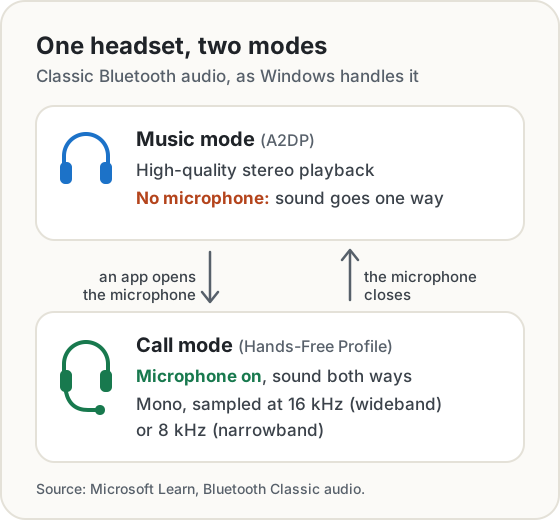
Classic Bluetooth headsets have two ways of talking to a computer. A2DP is for music: good stereo, but in Microsoft's words it "only supports audio output". To use the headset's microphone, Windows has to switch to the Hands-Free Profile, which carries the microphone and sound in mono at 8 or 16 kHz. That switch is why your music suddenly sounds like a phone call the moment a meeting starts. It's by design, not a fault.
It also explains two common problems:
- Windows 10 creates separate devices for the two modes: "Stereo", which is output only, and "Hands-Free", which has both an input and an output. Microsoft's advice is that apps which need the headset's microphone should use the Hands-Free devices, so pick that one as the input.
- Windows 11 merges them into one input and one output per headset, and switches mode automatically when an app opens the microphone.
If the headset still won't send sound, check it's actually connected to the computer, not just paired. If it's also paired with your phone, the phone may have it instead.
6. It's muted in hardware
Last, the embarrassing one, which Google and Microsoft both list anyway: a mute switch on the headset's cord, or the headset's own mute button. Many laptops also have a microphone mute key. If the Mic Test says Silent or Muted, this is the first place to look. Unplug a wired headset and push it back in, all the way.
If Windows doesn't list the microphone at all, Microsoft's advice is to uninstall and reinstall its driver in Device Manager, then restart.
On a phone
Phones ask per app rather than per site, so the switch to check is the app's own permission.
Android: Settings > Apps, choose the app (Chrome, WhatsApp, Zoom), then Permissions > Microphone, and pick Allow only while using the app or Ask every time instead of Don't allow. Android also has a phone-wide switch: Google's help puts it under Security & privacy > Privacy > Privacy controls > Microphone access, and if that's off, no app hears anything. For a website in Chrome on Android, it's More > Settings > Site settings > Microphone.
iPhone: Settings > Privacy & Security > Microphone lists every app that has asked. Turn on the one you need. Apple adds that an orange dot appears at the top of the screen whenever an app is using the microphone (green if the camera is on too). If you can see the dot during a call, the phone is listening, and the problem is in the app or at the other end.
The Mic Test works on phones too: open it in Safari or Chrome, press Start and allow the microphone.
Still nothing?
Restart the app, then the computer: it sounds lazy, but it releases any app that's holding the device. Try a different port, a different headset, or the laptop's built-in mic. If the Mic Test can't hear any of them in two different browsers, then it's time to suspect the hardware or the driver, and the manufacturer's support page is the next stop.
Sources
- Google. Use your camera and microphone in Chrome, desktop and Android versions.
- Microsoft Learn. Camera or microphone not working in Microsoft Edge.
- Microsoft Support. Fix microphone problems in Windows 11.
- Microsoft Learn. Exclusive-mode streams and Bluetooth Classic audio.
- Mozilla Support. How to manage your camera and microphone permissions with Firefox.
- Apple Support. Control access to the microphone on Mac, Change the sound input settings on Mac, Customize settings for each website in Safari and Control access to hardware features on iPhone.
- Google. Change app permissions on your Android phone.
- MDN. MediaDevices: getUserMedia(): secure pages only.
Share this post
Keep reading
Computing· Oct 9, 2026· 13 min
Webcam Not Working? Fixes for Chrome, Windows, Mac and Phones
Test your webcam in the browser, then fix it in order: site permission, Windows or Mac privacy, wrong camera, a busy app, shutter, driver, USB, light.Computing· Oct 14, 2026· 10 min
Does Your Photo Show Where You Live? Check and Remove It
Phone photos can carry GPS coordinates accurate to a few metres. See what yours give away, which apps strip it, and how to remove it before you share.Computing· Oct 7, 2026· 10 min
Chrome's Built-in AI (Gemini Nano): What It Can and Can't Do
Chrome now ships a small AI model that runs on your own computer. What it's good at, where it falls short, which APIs are ready, and when to use your own key.