Export Notion to Markdown: Keep Pages, Links and Databases
How to export Notion as Markdown & CSV, what the zip really holds, and how to turn it into clean pages with working links and real database tables.
Productivity··11 min read
To export Notion to Markdown, open the page, click ••• at the top right, choose Export, pick Markdown & CSV from the dropdown, switch on Include subpages and click Export. For everything you have, go to Settings, then General under Workspace, and choose Export all workspace content (Notion Help). Either way you get a zip: pages as .md files, databases as .csv files.
That zip keeps your words, but it isn't tidy. Every file name ends in a 32-character ID, each database is a spreadsheet next to a folder of one-file-per-row pages, and the links between pages point at those long names. Here's what to expect and how to end up with pages you'd actually want to keep.
The export, step by step
One page and everything under it, on desktop or the web:
- Open the page and click ••• at the top right, then Export.
- In the window that opens, choose Markdown & CSV as the format.
- Switch on Include subpages. Leave it off and you get only that one page.
- Click Export and save the zip.
The whole workspace. Go to Settings in the sidebar, select General under Workspace, and choose Export all workspace content. This one doesn't download straight away. Notion emails you a link (or puts it in your Notion inbox if email notifications are off), the export "can take up to 30 hours to process" for a big workspace, and the link expires after 7 days. It only works on desktop or the web, and pages you can't open yourself, such as other members' private pages, are left out (Notion Help). If you don't see the option at all, a workspace owner may have turned export off under Settings, then Security.
Two more things to know. For databases, Notion exports either the current view or the default view of each one, and "exporting all views at once isn't supported" (Notion Help). On Windows, very long folder paths can stop the built-in unzip tool: Notion suggests turning off Create folders for subpages, or extracting with 7-Zip.
What's actually in the zip
We opened several real exports while building our importer, and they share the same shape:
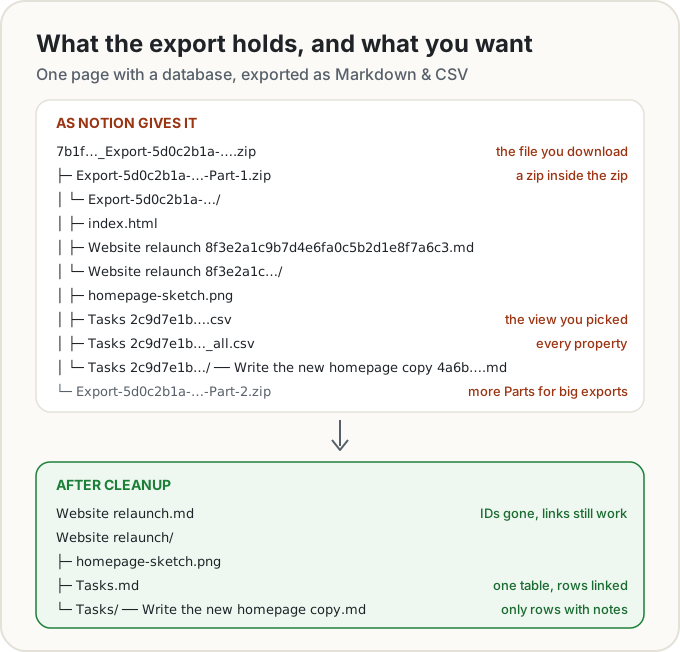
- A zip inside a zip. The file you download holds
Export-<id>-Part-1.zip, and for bigger exportsPart-2.zipand so on. Treat the Parts as one export and keep them together. - An ID on every name. Files are called
Title <32 hex characters>.md, and each page's subpages and images sit in a folder with the same name. Two pages called "Untitled" are told apart only by that ID. - Two CSVs per database.
Tasks <id>.csvhas the columns of the view you exported, in that view's order.Tasks <id>_all.csvhas every property. Both are UTF-8 with a byte order mark at the start. - Row pages with
Key: valuelines. Each database row is also its own.mdfile: the title, then one line per filled-in property (Status: In progress), then any notes you wrote inside the row. - Encoded, relative links. A link to another page reads
[Tasks](Website%20relaunch%208f3e…/Tasks%202c9d….md). Spaces become%20. A link to a database points at a.mdfile that doesn't exist, because the database was written as a.csv. Links to pages outside the export lead nowhere. - Callouts as raw HTML. Notion's help says it plainly: "Callout blocks will be exported as HTML, as there is no Markdown equivalent." You get
<aside>tags with the emoji, or a link to one of Notion's icon images, inside. - Dates frozen as text. A date mention becomes
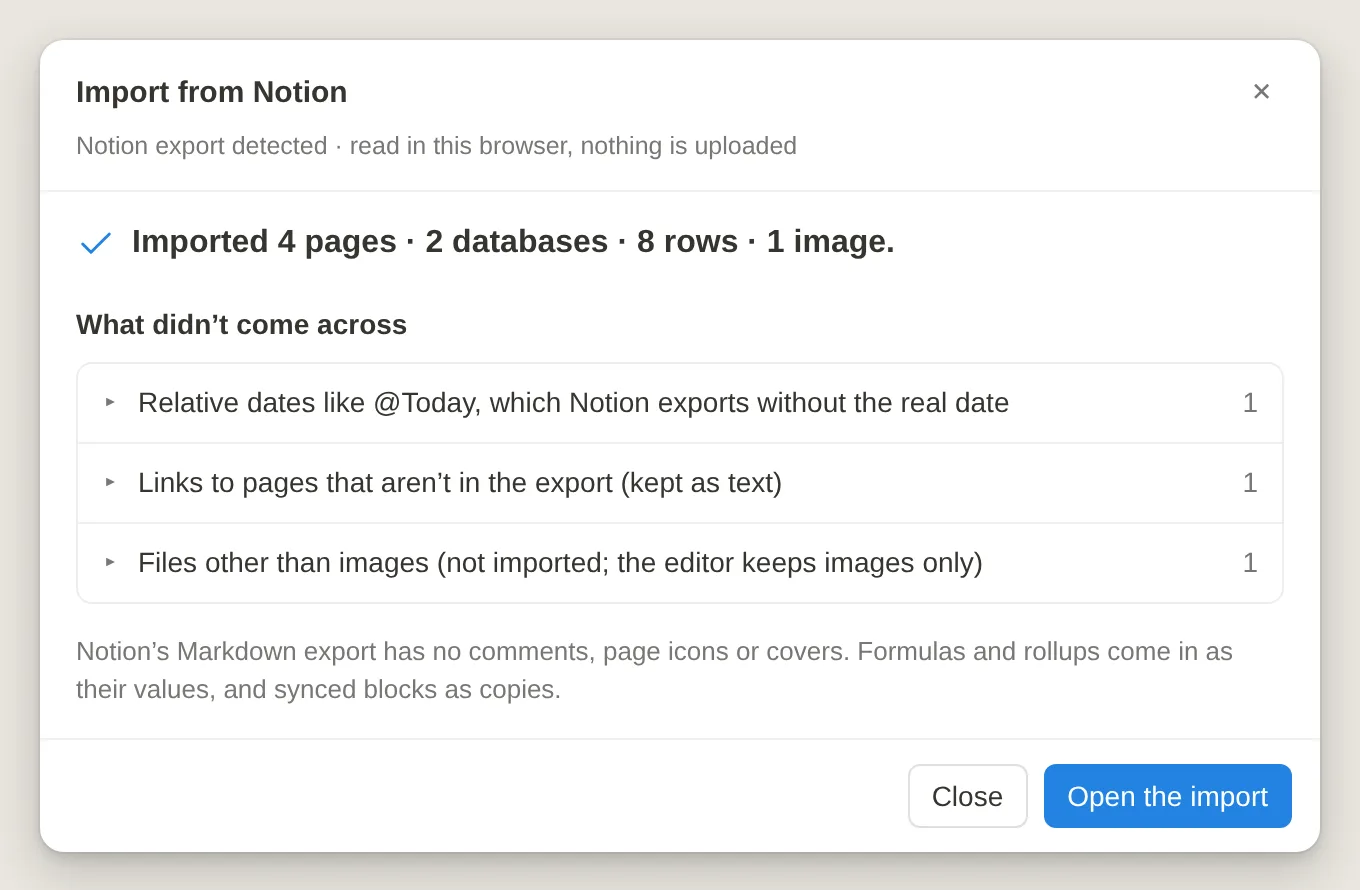
@November 16, 2026. A relative one becomes@Today, with no record of which day that was. - Images in folders. Pasted images sit in the page's folder, under their original file name in recent exports and
Untitled.png,Untitled 1.pngin older ones.
Formulas and rollups come out as their values only, and every property, from checkboxes to dates, is plain text. Comments aren't in the Markdown export at all; Notion only offers them with HTML.
Cleaning it up by hand
For a few dozen pages, a text editor with find-and-replace across files does most of it.
- Unzip twice. Unzip the download, then unzip every Part into the same folder, so the paths merge.
- Fix the links first. Search all files with the regular expression
%20[0-9a-f]{32}and replace it with nothing. That turnsTasks%202c9d….mdintoTasks.mdin every link, folder path and CSV cell. The raw IDs in file names, preceded by a space, aren't touched yet. - Rename the files and folders to match. Use a bulk renamer to remove
[0-9a-f]{32}(a space, then the ID) from every name, deepest files first so the folder paths stay valid. Watch for clashes: two pages called "Untitled" now want the same name. - Point database links at the CSV. Change links that end in
Tasks.mdtoTasks.csv, or paste the CSV into a Markdown table and keepTasks.md. - Decide on callouts. Leave the
<aside>blocks, or turn them into quotes.
What you can't fix by hand is the information that's gone: the real date behind @Today, the types of your database columns, and links to pages you didn't export.
Or import the zip in our Markdown Editor
We built a Notion importer into our Markdown Editor because the cleanup above is tedious and easy to get wrong. It reads the export in your browser. Nothing is uploaded, and there's no Notion login or token to hand over.
- Open the editor, open the ••• menu and choose Import .md, .zip or Notion export. Pick the zip exactly as Notion gave it, or several Part zips together. If you've already unzipped it, use Import a folder instead.
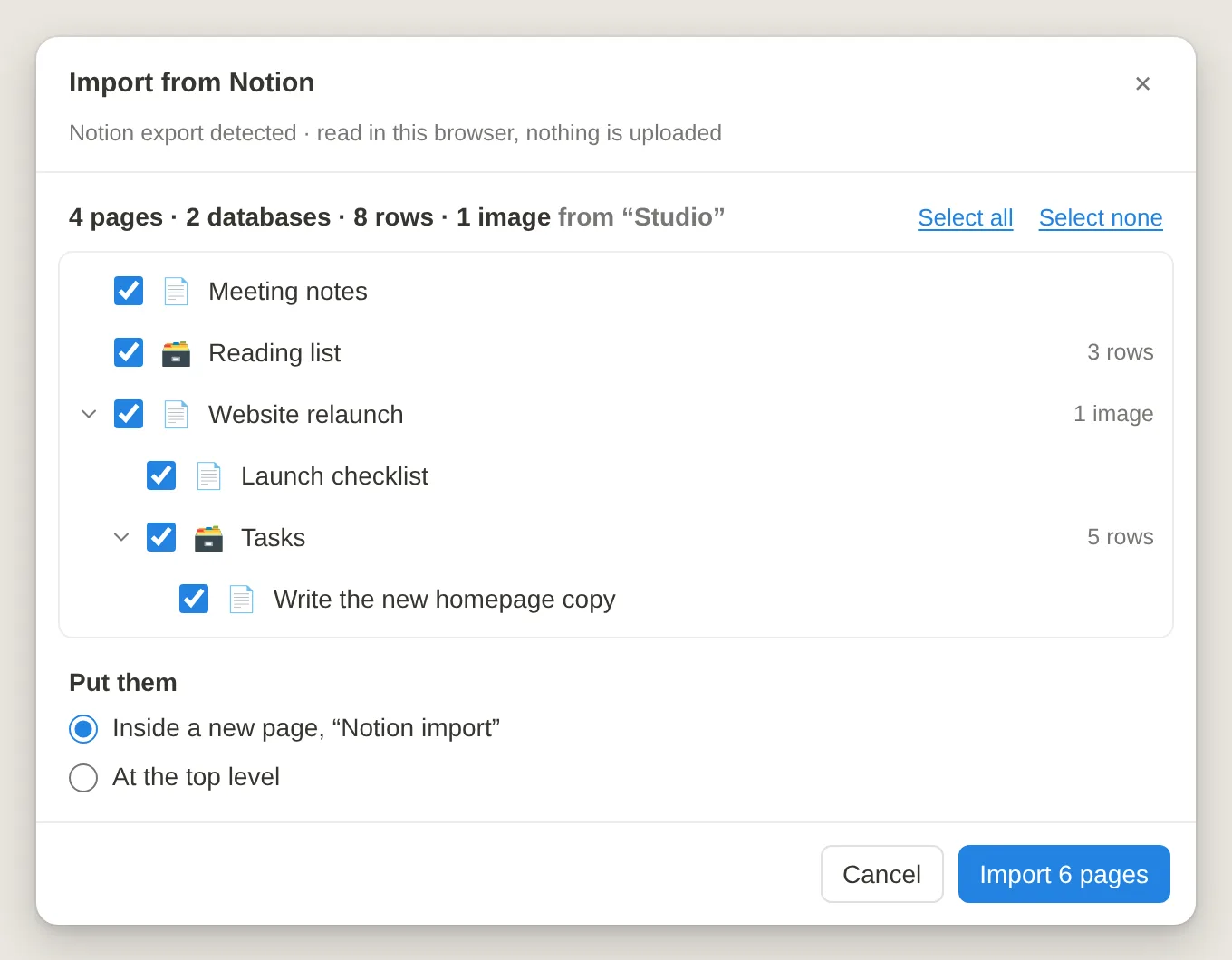
- The editor spots the export and shows its page tree, with a count of pages, databases, rows and images. Untick anything you don't want; unticking a page leaves out everything under it.
- Choose where the pages go (inside a new "Notion import" page, or at the top level) and click Import.
Here's what it does with each of the problems above:
- Names. Titles come from each page's own heading, not the shortened file name, and the IDs disappear. Pages with the same title get a number ("Untitled 2"), so every link points at exactly one page.
- Links. Every link is matched by the Notion ID at the end of its target, across all the Parts. That covers encoded paths, the database links that point at a missing
.md, andnotion.soaddresses of pages that are in the export. They become the editor's[[page links]], so backlinks work. A link to a page outside the export is kept as plain text and listed in the report. - Databases. It reads the
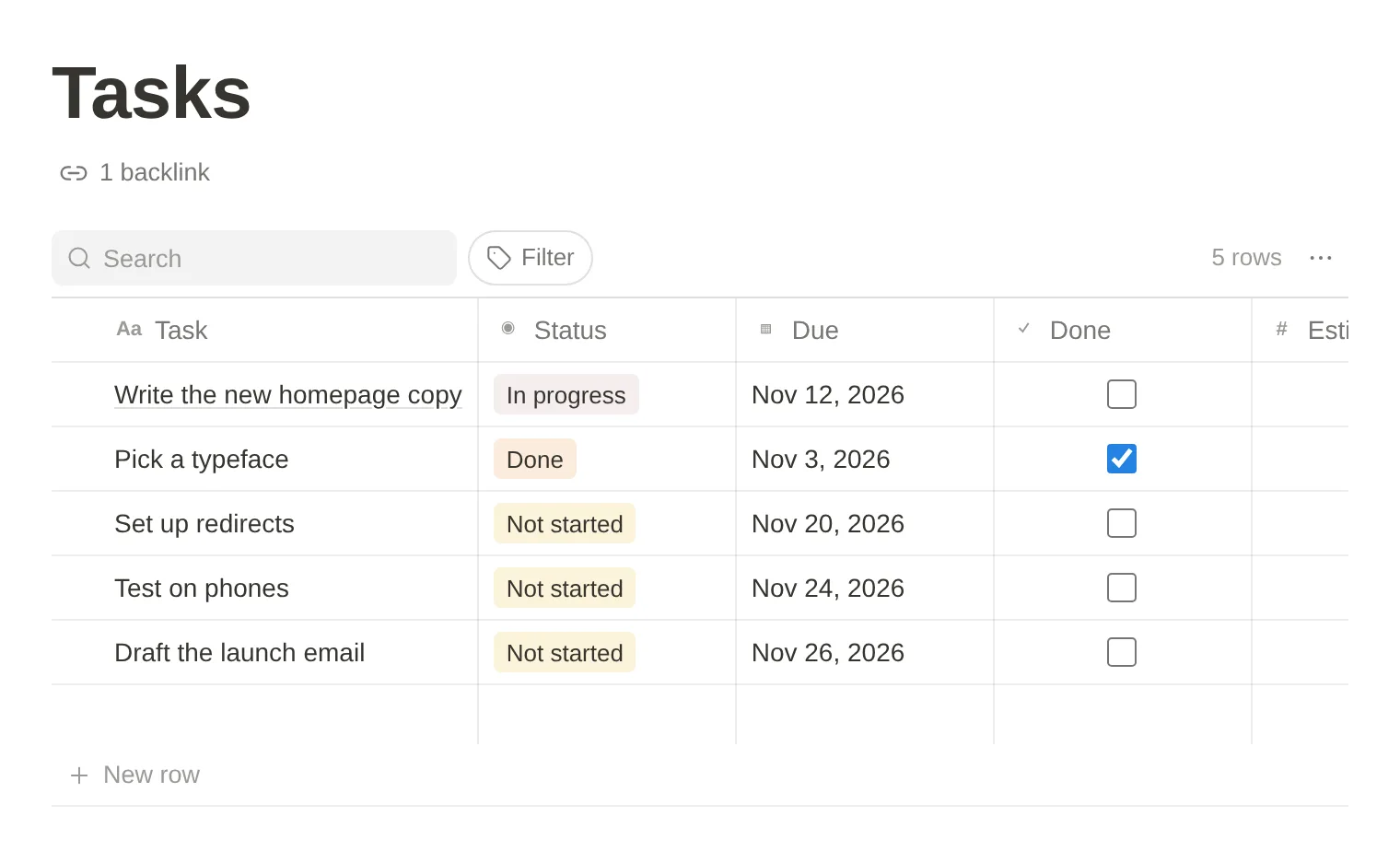
_all.csvfile, puts the exported view's columns first, and guesses each column's type from its values: checkbox, number, date, URL or select tags. A dated column that includes times or date ranges stays text so nothing is lost. Relations become page links. A row you wrote notes in becomes its own page, linked from its title cell, with its properties listed at the top. - Callouts, dates, to-dos.
<aside>blocks become callouts, with Notion's own icons swapped for a matching emoji. Date mentions become date chips. Empty to-dos are dropped, and code blocks keep their language. - Images. Pasted and embedded images go into the editor's image store in your browser, including ones whose names Notion mangled.
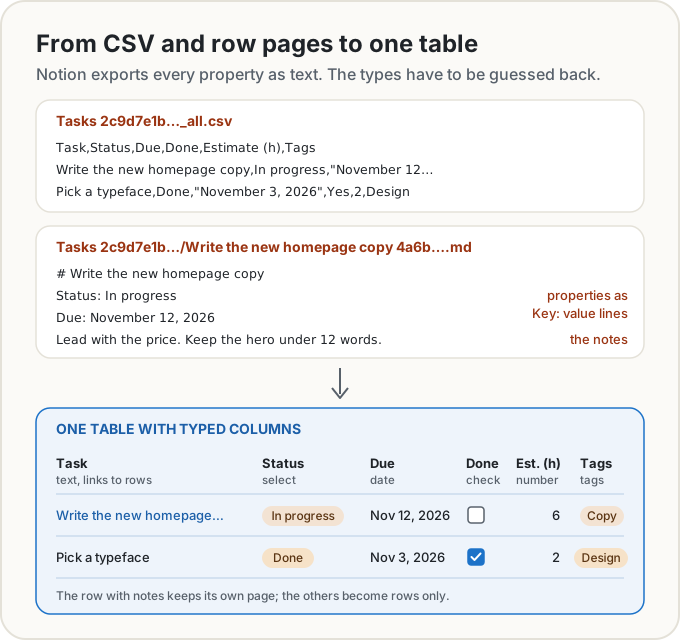
The database is still Markdown underneath: a plain pipe table with one hidden comment line above it that records the column types. Open the page in any other Markdown app and you see an ordinary table.
When it finishes, it says what didn't come across instead of dropping it quietly: links to pages outside the export, relative dates such as @Today, attachments it couldn't keep, and so on, each with the page it was on.
What it doesn't do (yet)
- Notion's HTML export isn't supported. The editor recognises it and asks you to export again as Markdown & CSV.
- Images are the only attachments it keeps. A PDF or audio file becomes a "📎 file name" line and shows up in the report. Images that live on the web stay as links, and an image over 25 MB isn't saved.
- Big databases are trimmed. A table holds up to 2,000 rows and 50 columns; anything over that is listed.
- Your browser's storage is the limit. Pages are kept in this browser, which leaves room for a few megabytes of text in total. If what you've ticked won't fit, the dialog says so before importing; untick part of it and bring the rest in later, or export one top-level page at a time.
- Importing again doesn't update anything. It won't refresh the pages from an earlier import, so delete those first if you want to bring in a newer export.
- Inline databases become a page of their own, linked from where they sat, rather than a table in the middle of the page.
Some things aren't in the Markdown export to begin with, so no importer can bring them back: comments, page covers, the formulas behind values, and which view had which filter.
To take your pages somewhere else afterwards, Export → All pages (.zip) writes one .md file per page, in folders that follow the page tree, with [[page links]] kept.
Moving to Obsidian instead
If Obsidian is where you're going, its official Importer plugin has a Notion option, and it works differently. Its file method needs Notion's HTML export, not Markdown ("Make sure you use HTML as the export format in Notion"), and its help page says that method "does not preserve Databases". Its API method connects to your workspace with an integration token and turns databases into Bases, importing only each database's primary view (Obsidian Help). So pick the export format for the tool you're moving to before you start, because a big workspace export can take hours each time.
You can also keep the Markdown & CSV export and run it through our Notion to Markdown converter. It uses the same importer as the editor but writes a zip of plain files you can open as a vault: names without the IDs, [[wiki links]] or relative links, images in an attachments folder beside each page, and every database as a Markdown table with a CSV next to it.
Share this post
Keep reading
Productivity· Nov 4, 2026· 14 min
How to Time Block Your Week, and What the Research Says
Time blocking gives every task a slot on your calendar. A 20-minute weekly routine, how to pad estimates, and what the studies do and don't show.Productivity· Oct 10, 2026· 11 min
Do ATS Reject Resumes? The 75% and 6-Second Myths
Do applicant tracking systems really reject 75% of resumes, and do recruiters look for 6 seconds? Where both numbers came from and what the evidence says.Productivity· Oct 7, 2026· 8 min
PST, PDT and IST: How Time Zones and Daylight Saving Work
UTC offsets, why the US–India gap flips between 12½ and 13½ hours, the weeks the US and Europe disagree, IANA zone names, and when working hours overlap.